On this page
This article explains the public pages you use to explore Nepal. Nobody needs to sign in for any of them. Pages that offer a quote request are described in more detail in Quotes and agency enquiries.
Where each page is#
| Page | Route | How to open it |
|---|---|---|
| Destinations (country page) | /nepal | Menu Destinations |
| A destination | /nepal/pokhara (and so on) | Select a destination card |
| Things to do | /things-to-do, /things-to-do/<activity> | Menu Experiences |
| Treks | /trekking, /trekking/<trek> | Menu Treks |
| Itineraries | /itineraries, /itineraries/<itinerary> | Menu Itineraries |
| Tours | /tours, /tours/<tour> | Menu Tours |
| Travel guides | /travel-guides, /travel-guides/<guide> | Menu Guides |
| Search | /search | The magnifier icon in the header |
| Plan Your Trip | /plan-your-trip | Plan Your Trip button |
Features shared by the section pages#
- Breadcrumb at the top ("Home" followed by where you are) to go back up a level.
- Section menu on detail pages: a sticky row of links that jump to a part of the page. It only lists sections that have content, and has a button on the right (for example Find tours or Request quotes).
- At-a-glance bar under the photo with the key facts (length, difficulty, best season and so on).
- Side card: on a computer a column beside the text with a map and the main buttons; on a phone it moves under the first section.
- Ask the assistant card: opens the AI assistant already pointed at this page (for destinations, treks, tours and traveller stories) and, on some pages, with a question already typed and sent.
- Photo credits are shown under photos that have one.
- Advertisements: editorial pages (destinations, treks, activities, guides) may show a labelled Advertisement after you accept non-essential cookies. Tour, agency and assistant pages never show ads. See How we make money.
Destinations#
The country page (/nepal)#
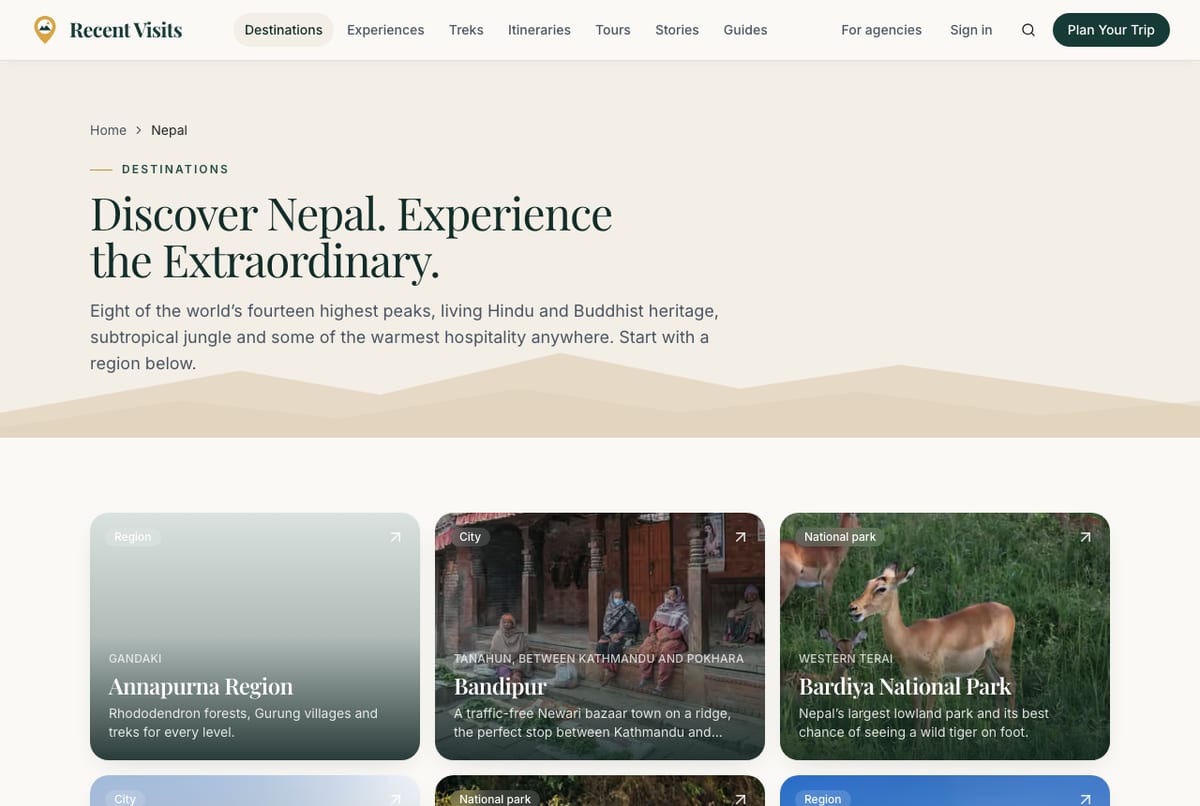
A header titled with the country's headline, then a grid of destination cards (photo, name and tagline), then Popular treks (up to three, with All treks).
A destination page#
| Field or item | Type | Required? | Explanation | How to use it |
|---|---|---|---|---|
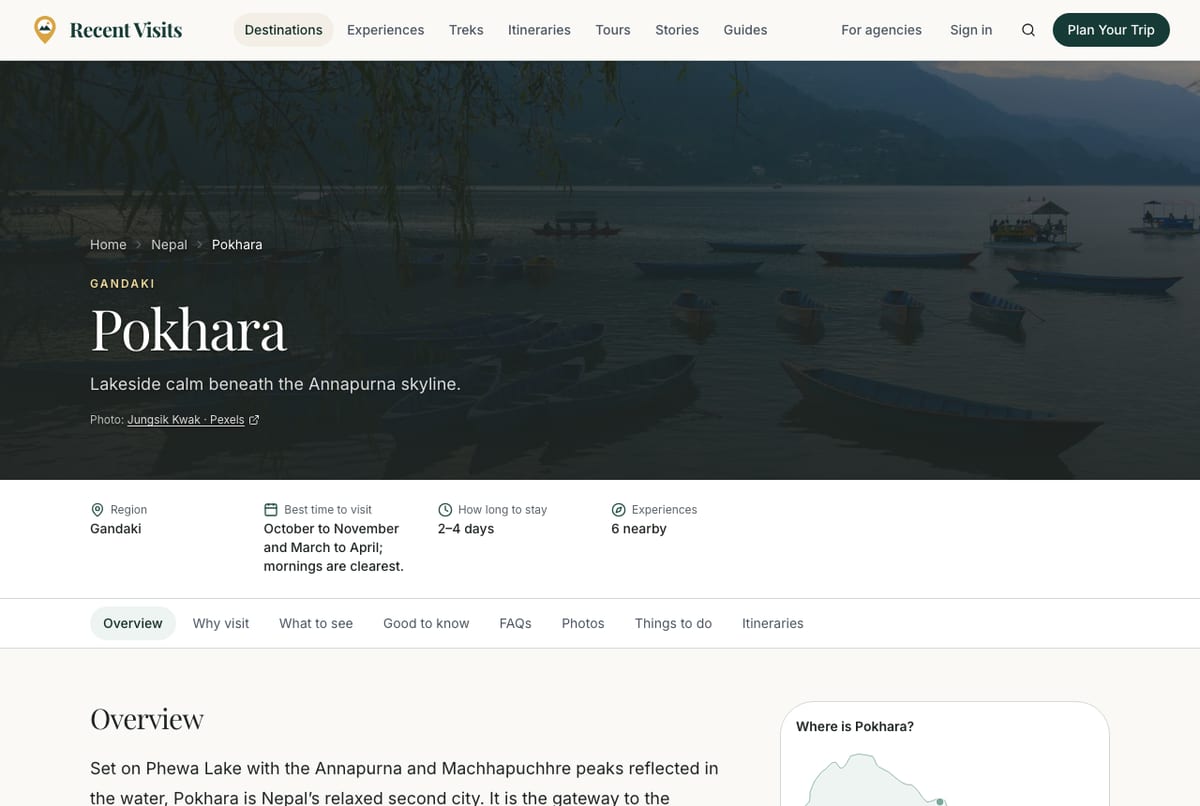
| Photo header | Image with text | No | Region, destination name and tagline over a photo, with a credit if the photographer is known. | Read, or scroll on. |
| Facts bar | Read-only | No | Region, Best time to visit, How long to stay, Experiences ("N nearby") and Treks ("N from here"). Only facts the page has are listed. | Use it to judge the place quickly. |
| Section menu | Link row | No | Overview, Why visit, What to see, Food, Where to stay, Getting there, Good to know, FAQs, Photos, Things to do, Itineraries, Treks. A link appears only if that section exists. | Select a link to jump to it. |
| Find tours | Button | No | Opens Tours filtered to this destination (/tours?destination=<place>). | Select it to see partner tours that cover the place. |
| Map Where is X? | Map | No | Shows the place and nearby destinations when coordinates are known. | Select a nearby pin to open that destination. |
| Plan your visit card | Buttons | No | Tours to X (same as Find tours) and See suggested itineraries (shown only if there are itineraries for the place). | Select the one you need. |
| Planning time in X? card | Link | No | Opens the assistant with this destination as context and the question "What should I do in X?" already sent. | Select it to continue in the assistant. |
| Sections | Text | No | Overview, Why visit X (reason cards), What to see (places), Food, Where to stay, Getting there and around, Good to know (tips), FAQs. | Read. |
| X in pictures | Gallery | No | A photo gallery. | Select a photo to enlarge it. |
| Experiences in X, Suggested itineraries with X, Treks from X | Card grids | No | Up to six experiences and up to three itineraries and three treks related to the place. | Select a card. |
| Guides and stories | Card grid | No | Guides and editorial stories about the place. | Select a card. |
| Often combined with | Card grid | No | Nearby destinations that are often visited together. | Select a card. |
Itineraries#
An itinerary is a day-by-day plan by the Recent Visits team. It has no prices. You can ask up to three agencies to quote it.
The itineraries list#
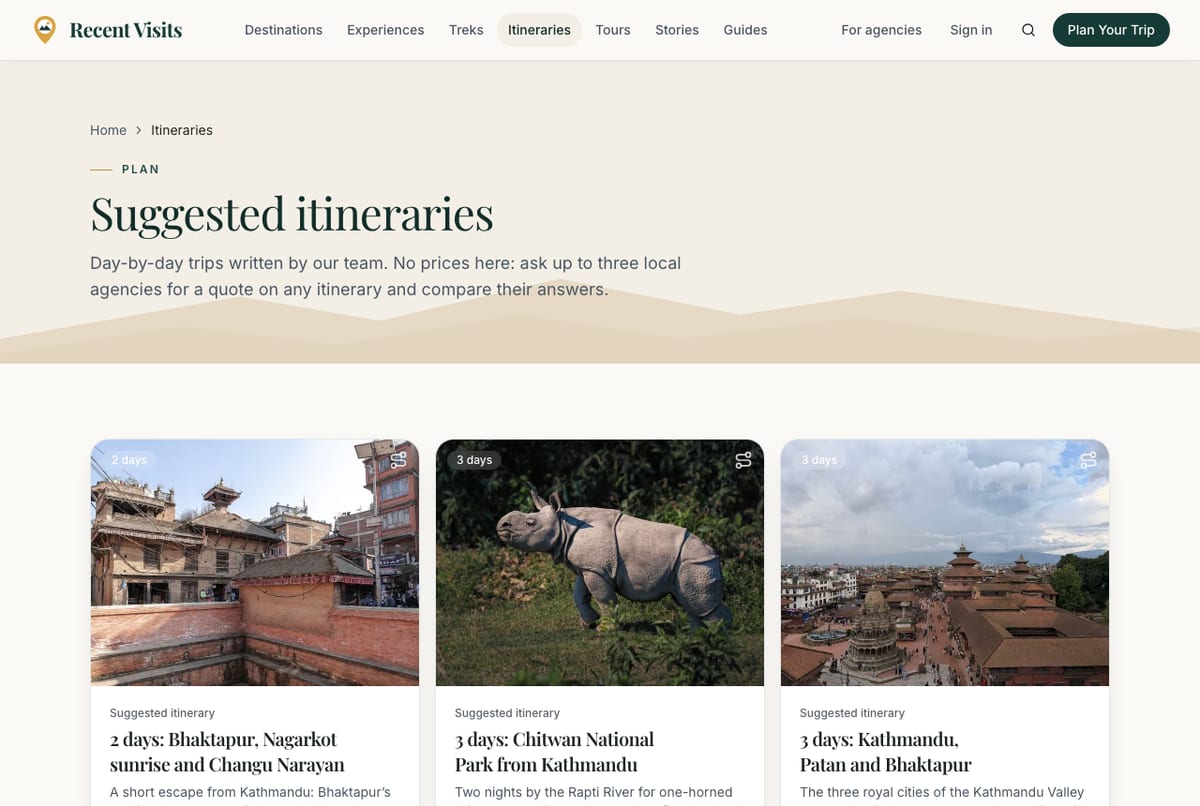
Heading Suggested itineraries, a grid of cards, and, if none are published yet, the message "Itineraries are on their way" with a hint to ask the assistant.
An itinerary page#
| Field or item | Type | Required? | Explanation | How to use it |
|---|---|---|---|---|
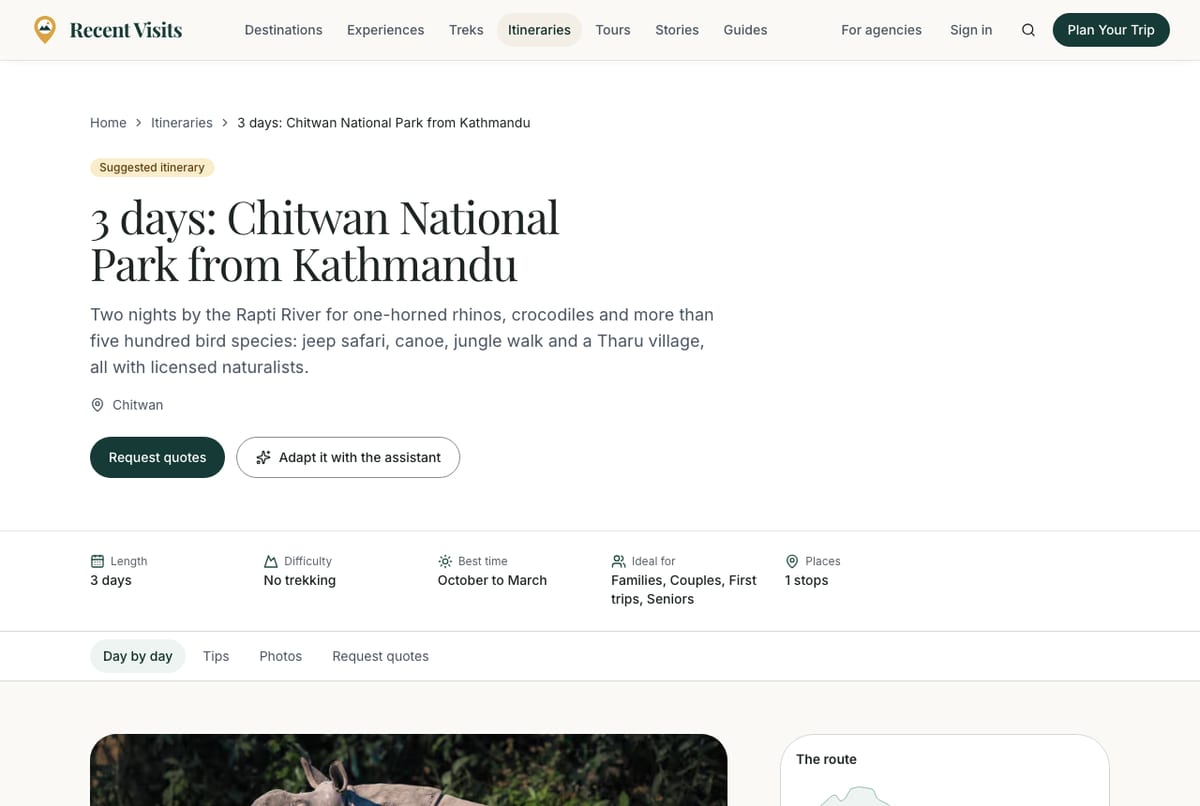
| Suggested itinerary badge, title, summary | Read-only | No | Identifies the page as general guidance by Recent Visits. | Read. |
| Places line | Links | No | The stops in order, each linking to its destination page. | Select a place. |
| Request quotes | Button | No | Jumps to the quote form lower on the page. | Select it when you want agency quotes. |
| Adapt it with the assistant | Link | No | Opens the assistant with "Help me adapt the "title" itinerary to my trip." already sent. | Use it to shorten, extend or change the plan. |
| Facts bar | Read-only | No | Length (days), Difficulty, Best time, Ideal for (for example Couples or Families) and Places ("N stops"). | Check it fits your trip. |
| Section menu | Link row | No | Day by day, Tips, FAQs, Photos, As a tour (only if agencies offer it) and Request quotes. | Select to jump. |
| Day by day | List | No | "Day 1, Day 2 ..." each with a title, description and where you sleep ("Overnight: ..."). If the plan includes a trek, a note links to the trek page. | Read; check the trek page for permits and current rules. |
| The route map | Map | No | The stops joined in order. | Select a pin to open the place. |
| Make it your trip card | Buttons | No | Explains that local agencies quote the plan for your dates, hotels and group, free, and you can compare up to three quotes. Request quotes and (when available) See it as a priced tour. | Select a button. |
| Offered as a tour by partner agencies | Cards | No | Tours from agencies that run a version of this itinerary. Featured agencies paid for placement and are shown first; a How we rank link explains it. | Open a tour or request a quote on it. |
| Request quotes for this itinerary | Form | - | Pick up to three agencies and send the plan. Every field is explained in Quotes and agency enquiries. | Fill it in at the bottom of the page. |
| "Are you an agency?" link | Link | No | For agency staff: starts a tour based on this itinerary in the partner portal. | Ignore this if you are a traveller. |
| Phone bar Get quotes | Bar | No | On phones and tablets a bar at the bottom ("Free quotes from up to three local agencies") jumps to the form. | Select it. |
Tours#
The tours list (/tours)#
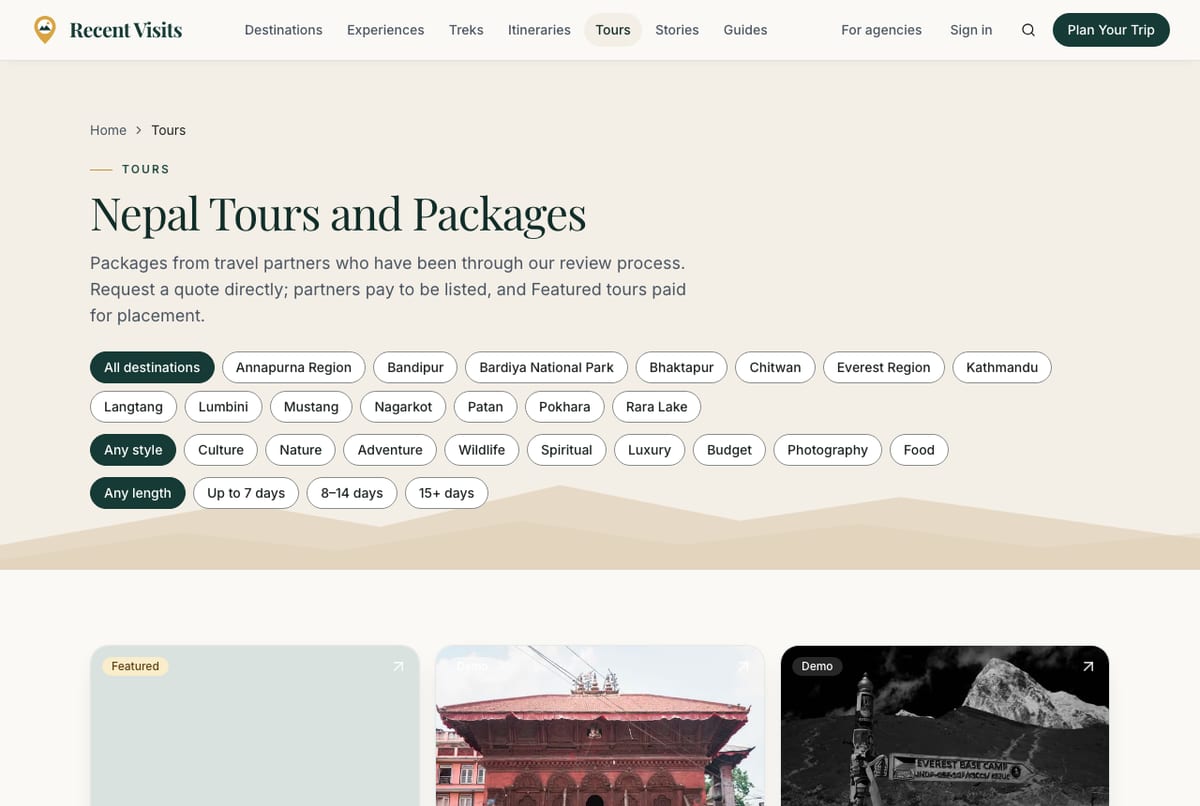
Heading "Nepal Tours and Packages". Three rows of filter chips narrow the list; each chip is a link, so you can bookmark or share a filtered list. Filters combine, and changing one returns you to page 1.
| Field or item | Type | Required? | Explanation | How to use it |
|---|---|---|---|---|
| Filter by destination | Chip row | No | All destinations followed by one chip per destination. | Select a chip; the active one is filled in. |
| Filter by travel style | Chip row | No | Any style, Culture, Nature, Adventure, Wildlife, Spiritual, Luxury, Budget, Photography, Food. | Select a chip. |
| Filter by length | Chip row | No | Any length, Up to 7 days, 8–14 days, 15+ days. | Select a chip. |
| Tour cards | Cards | - | Photo, title, agency (with "Verified" where staff verified it), places, duration, who it suits and a "from" price. A Featured tag appears only on a tour whose agency paid for placement; Demo marks example listings. | Select a card to open the tour. |
| Pagination | Links | - | 12 tours per page. | Use the page numbers at the bottom. |
| Disclosure line | Text | - | "Tours come from partner agencies that pay to be listed ... Featured ones paid for placement and come first." | Follow the link for the full explanation. |
| Empty state | Message | - | "No tours match those filters" with a suggestion to widen the filters or ask the assistant. | Remove a filter. |
A tour page#
| Field or item | Type | Required? | Explanation | How to use it |
|---|---|---|---|---|
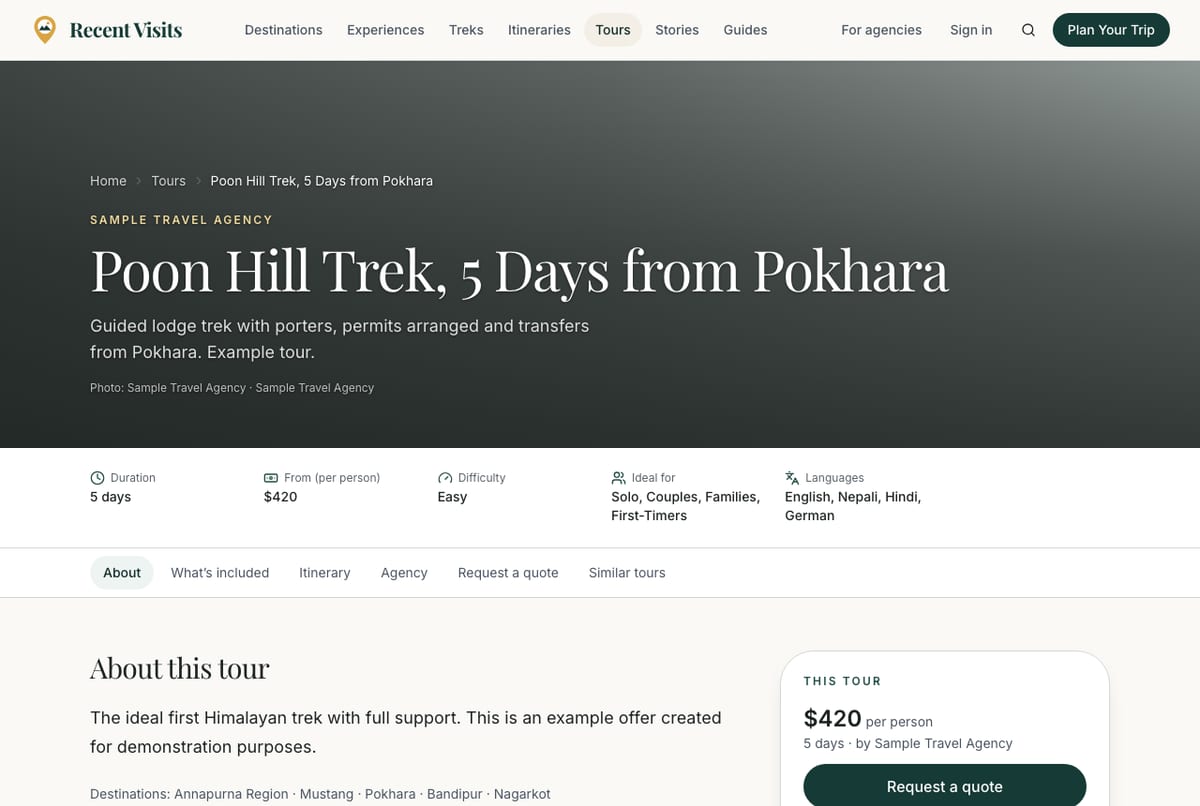
| Header | Read-only | No | A Featured badge (only for a paid boost), a Demo partner badge (example listing), the agency name, the title and a summary. If the tour is based on a Recent Visits itinerary a link says so. | Read. |
| Facts bar | Read-only | No | Duration, From (per person), Difficulty, Ideal for, Languages and the places. | Compare with your trip. |
| Side card This tour (or Featured tour) | Card | No | The "from" price per person, "N days - by agency", and the buttons below. Prices are indicative; the agency's quote is what counts. | Read, then use a button. |
| Request a quote | Button | No | Scrolls to the quote form on the page. | Select it. |
| View on partner site | External link button | No | Shown only if the agency supplied its own page for the tour. Opens the agency's website in a new tab; the click is counted. Nothing is booked or paid on Recent Visits. | Select it to read about the tour on the agency's site. |
| Section menu | Link row | No | About, Photos, What's included, Itinerary, Agency, Request a quote, Similar tours. | Select to jump. |
| About this tour, Photos, What's included | Text, gallery, lists | No | The agency's description, photos, and what is Included and Not included. | Read; compare with other tours. |
| Itinerary | Expandable list | No | The agency's day-by-day outline. | Expand a day. |
| Offered by | Agency card | No | The agency, with More tours from X linking to its page. | Open the agency page to read reviews. |
| Request a quote section | Form or link | - | The quote form (see Quotes), or Enquire on partner site if the agency prefers to receive enquiries on its own site. A line says "Your request goes straight to the agency. No booking is made and nothing is charged." | Fill in the form. |
| Not sure it fits? card | Link | No | Opens the assistant with the question "Is "title" a good fit for my trip?" and this tour as context. | Use it for a second opinion. |
| Similar tours, Destinations on this tour | Cards | No | Other tours and the destination guides for the places visited. | Select a card. |
| Phone bar Request a quote | Bar | No | A fixed bar at the bottom on phones and tablets with the length and price. | Select it to jump to the form. |
Treks#
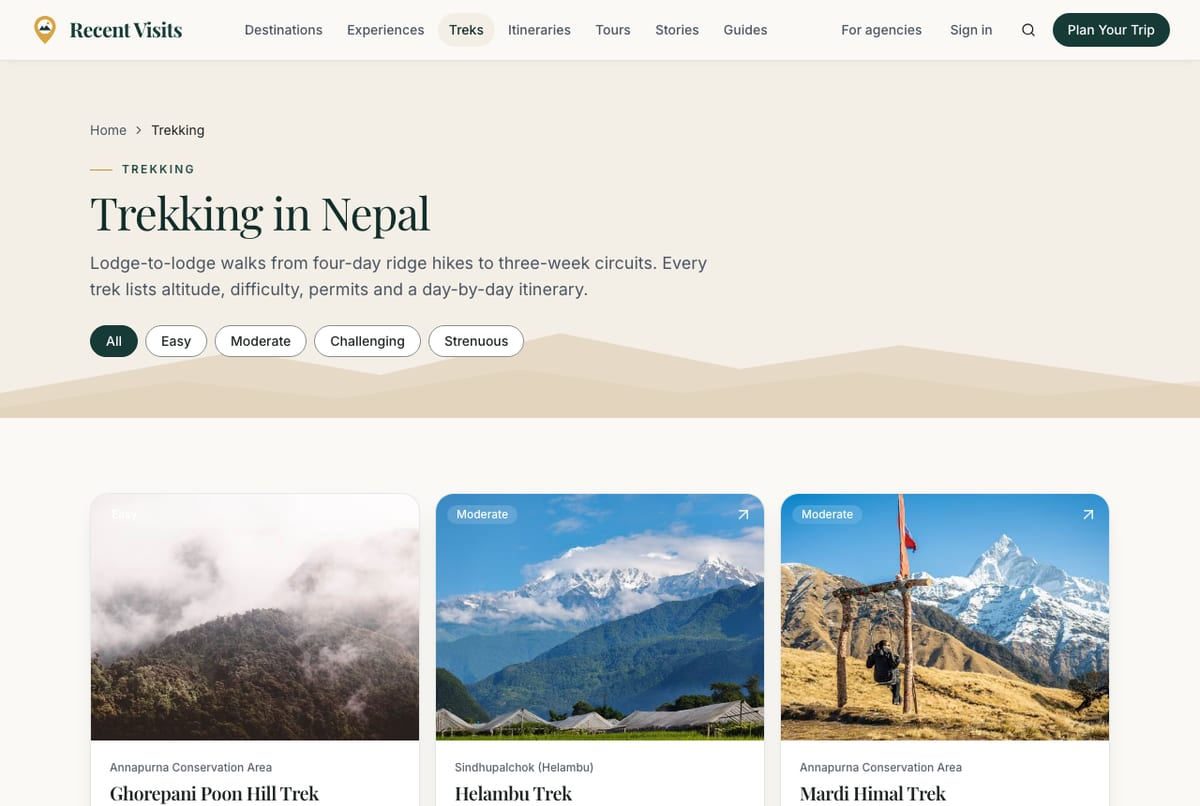
Trekking in Nepal lists treks as cards. Under the heading is a Filter by difficulty chip row: All, Easy, Moderate, Challenging, Strenuous. Up to 48 treks are shown; if none match you see "No treks match that filter".
On a trek page the facts bar shows Duration, Max altitude, Distance, Best season, Starts and Ends. The section menu lists Overview, Itinerary (Day-by-day itinerary), Permits, Safety (Safety and altitude), Packing, FAQs and More treks. The side card Plan this trek repeats difficulty, days and altitude, offers Guided tours in X (or Browse guided tours) and a Permits you need link, with a map of the route. Is this trek right for you? opens the assistant with this trek as context. Permit information carries a freshness notice.
Things to do#
Things to Do in Nepal is a grid of activity cards (safaris, paragliding, rafting, cultural tours and more). If there are none yet you see "Activity guides are on their way". An activity page has a facts bar (Difficulty, How long, Best season, Typical cost, Where), sections About, What to expect, How to book, Safety, What to bring, Good to know, FAQs, Photos, Where, and Tours with that activity, plus a Plan it card with a button to those tours (or Browse tours) and Best places for it. The "How to book" text is general editorial advice; booking itself happens with the operator or agency, never on Recent Visits.
Travel guides#
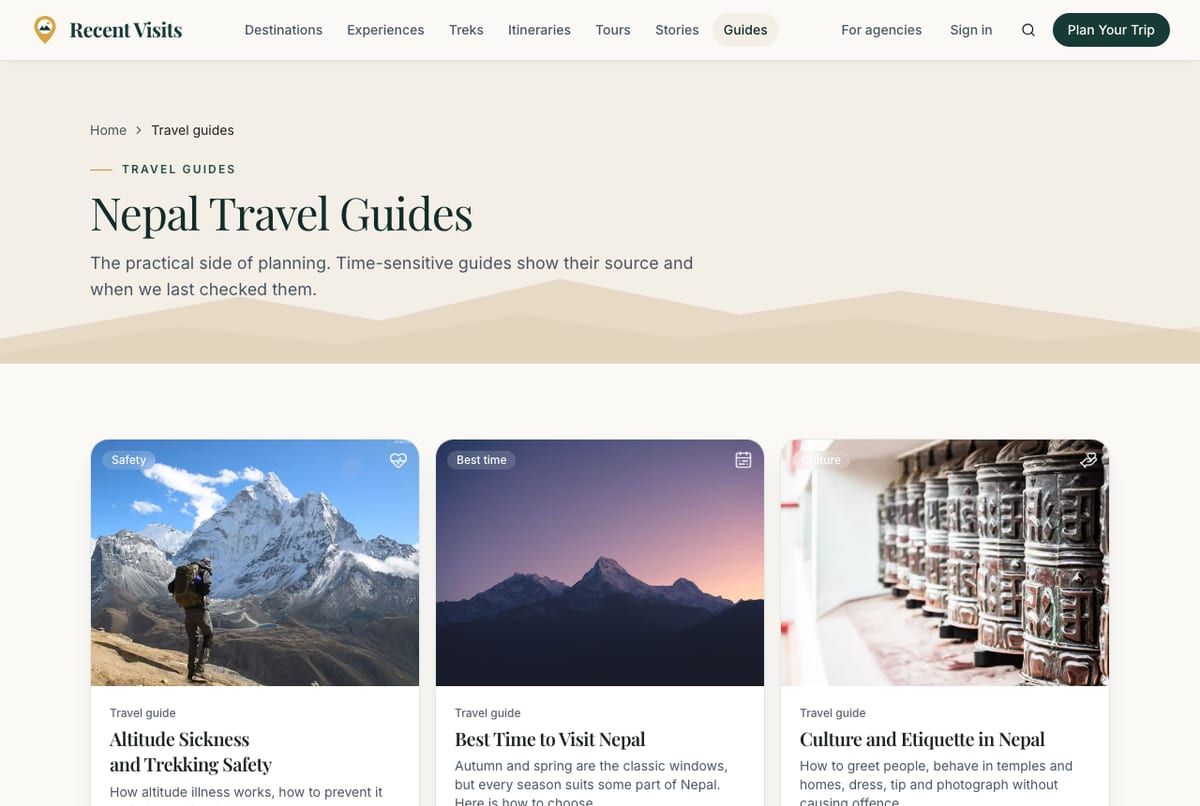
Nepal Travel Guides lists practical guides (visas, best time to visit, transport, permits and so on). Empty message: "Guides are being fact-checked". A guide page shows the title, summary and author, a freshness notice, the text with a table of contents (In this guide), optional FAQs, Destinations this applies to and More travel guides.
Freshness notices#
Time-sensitive pages (travel guides and trek permits) carry a notice about when the information was last checked:
| Notice | Meaning |
|---|---|
| "... was last checked on (date) against (source). Rules can change; confirm before you travel." | Checked recently. Still confirm with the official source. |
| "... was last checked on (date) and is due for review." | Due for a re-check soon. Confirm the latest details with the source. |
| "... was last verified on (date) and may be out of date." (red) | The review date has passed. Always confirm with the source. |
| "... has not been independently verified yet." (red) | No check is recorded. Treat it as a starting point only. |
Search#
Open /search from the magnifier icon. The page has one box.
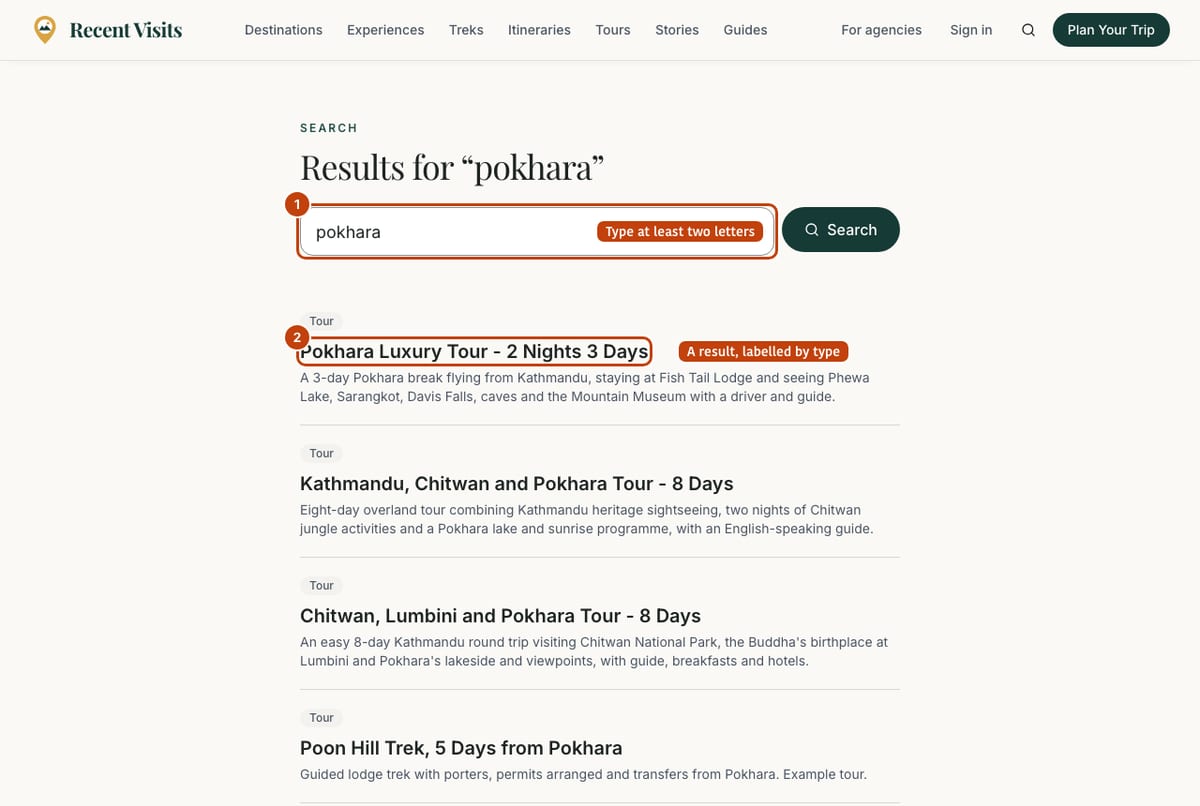
| Field or item | Type | Required? | Explanation | How to use it |
|---|---|---|---|---|
| Search box (placeholder "Search Nepal: Pokhara, Everest, permits...") | Search box | Yes | The words to look for, up to 120 characters; at least 2 letters are needed. The box is selected automatically when the page is empty. | Type and press Enter. |
| Search | Button | - | Runs the search (shows only a magnifier on a phone). | Select it. |
| Results | List | - | Up to 30 matches, best first. Each shows a type label (Destination, Trek, Activity, Travel guide, Story, Country, Partner, Tour, Traveller story), a title link and a short excerpt. | Select a title. |
| "Type at least 2 characters." | Message | - | Shown when the search is too short. | Add letters. |
| "No matches" | Empty state | - | "Try a destination, trek or topic such as "permits". The assistant can also answer questions directly." | Try other words, or ask the assistant. |
There are no filters and no sorting on the search page. Itineraries are not searched; use Itineraries. When demo listings are hidden by the site, demo agencies, tours and stories are left out of the results too.
How to find a tour that fits#
- Open Tours (menu) and pick a destination chip, then a style, then a length.
- Open two or three tours and compare What's included, the itinerary and the agency's reviews.
- Select Request a quote on the tours you like, or open an itinerary to ask up to three agencies at once.
- Wait for the quotes in My trips and compare them.
Troubleshooting#
| Problem | What to try |
|---|---|
| "No tours match those filters". | Remove one chip at a time, starting with the length. |
| The section menu has no Food link. | The page has no food section yet. Only sections with content are listed. |
| View on partner site is missing on a tour. | That agency has not supplied its own page; use the quote form. |
| A guide shows a red freshness notice. | Check the official source named in the notice before you rely on the information. |
| Search finds nothing for an itinerary. | Itineraries are not in search. Open Itineraries instead. |
Last checked against the product:
Related articles
- Traveller guide · How to use Recent Visits to explore Nepal, compare tours and agencies, and ask agencies for quotes. Covers the homepage, menus, search and where to find each tool.
- Quotes and agency enquiries · How to ask a travel agency for a quote on Recent Visits, what each form field means, what happens next, and how to read, compare, accept or decline quotes. A quote request is not a booking.
- The AI travel assistant · How to plan a trip with Recent Visits AI, every control on the assistant screen, what it uses to answer, how the sign-in gate and limits work, and how to check what it tells you.
- Agencies, ratings and writing a review · How to find a partner agency, read its page and traveller reviews, report a review, and write, edit, verify or withdraw your own honest review. Explains ratings, moderation and what each status means.
Still stuck? Contact us and tell us what you tried.