On this page
If you no longer want your agency to be listed, an owner can close it. The agency is hidden from the site at once; 14 days later its data is removed. Until then you can change your mind.
Who can do it and how to open it#
Only agency owners can close the agency. Open Agency → Profile and choose Close the agency in the line "No longer want to be listed?" under the form, or go to /partner/close. Managers can open the page but see only "Only agency owners can close the agency."
What the page shows#
The page is called Close the agency ("Remove this agency from Recent Visits. Only owners can do this.").
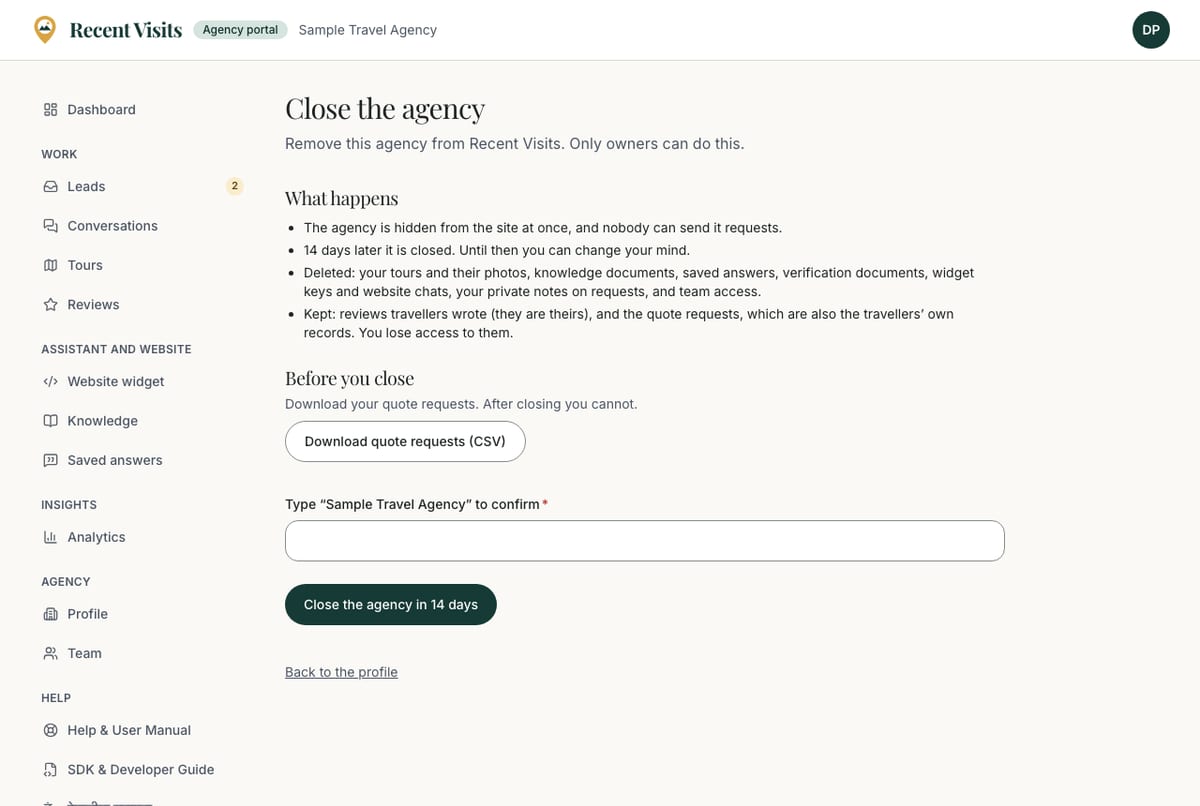
| Section | Shown when | What it holds |
|---|---|---|
| What happens | No closure is waiting | Four bullet points (below). |
| Before you close | No closure is waiting | The download button for your quote requests. |
| The confirmation form | No closure is waiting | The name field and the Close the agency in 14 days button. |
| A yellow notice and Keep the agency | A closure is waiting | "<agency> is hidden and will be closed on <date>." |
| A red notice and Keep the agency | The closure could not finish | "The closure could not finish: <reason>." If the reason is missing it says "please contact us". |
| Back to the profile | Always | A link at the bottom. |
What happens#
- The agency is hidden from the site at once, and nobody can send it requests.
- 14 days later it is closed. Until then you can change your mind.
- Deleted: your tours and their photos, knowledge documents, saved answers, verification documents, widget keys and website chats, your private notes on requests, and team access.
- Kept: reviews travellers wrote (they are theirs), and the quote requests, which are also the travellers' own records. You lose access to them.
The agency page itself is not erased: it is suspended, with its contact details (website, email, phone, address, tagline and logo) cleared and the verified badge removed, so nothing is shown while the rest is deleted. Reviews of a closed agency stay in the database but are not shown anywhere, because the suspended agency page is hidden. Billing records are not held in the portal; keep your own for the period the law requires.
Download your quote requests#
Before you close, choose Download quote requests (CSV). After closing you cannot.
| Item | Explanation |
|---|---|
| Download quote requests (CSV) | Downloads quote-requests.csv with up to your 5,000 most recent requests. It holds only what the Leads page already shows you, so it has no email or phone number. Only owners can download it; anyone else gets "Not allowed". |
| Columns | Received, Name, Country, Travel date, Travellers, Days, Budget, Currency, Status, Message, Your notes. |
Open the file in a spreadsheet. Keep it safe: it contains travellers' names and messages.
Close the agency#
| Field or item | Type | Required? | Explanation | How to use it |
|---|---|---|---|---|
| Type “<agency name>” to confirm | Text | Yes | You must type the agency's name exactly as it is on your profile. Error: "Type the agency name exactly to confirm." and under the box "Type the agency name exactly". | Copy the name from your profile if unsure. |
| Close the agency in 14 days | Button | n/a | Hides the agency now and schedules the closure for 14 days later. Success: "The agency is hidden and will be closed in 14 days." There is no extra confirmation dialog. | Press it only when you are sure. |
| Keep the agency | Button | n/a | Cancels a pending closure and puts the agency back to the status it had before. The same button appears on the dashboard's setup checklist. | Use it any time before the closure date. |
Re-authentication: for your security you must have signed in within the last 15 minutes. If not you see "For your security, sign in again, then come back to this page." Sign out, sign in again and return to /partner/close. You can make up to five attempts a day ("Too many attempts. Try again tomorrow.").
After you press the button, every member of your team is emailed ("<agency> will be closed on Recent Visits") with the date and a link to Keep the agency.
What happens next#
- At once: the agency is suspended, so its page, its tours and the assistant's recommendations disappear. The portal still opens for the team so an owner can keep the agency. The dashboard setup steps show "Closing on <date>. Until then an owner can keep the agency."
- After 14 days: a daily job closes the agency and deletes the data listed above.
- If something blocks the closure: the page shows the red notice with the reason. Contact partners@recent-visit.com (opens in a new tab).
Recent Visits staff can also close an agency immediately on request.
How to close the agency#
- Sign in again if you have not signed in within the last 15 minutes.
- Open Agency → Profile, then Close the agency.
- Download the CSV of your quote requests.
- Type the agency name and choose Close the agency in 14 days.
- If you change your mind, return to this page and choose Keep the agency.
Expected result#
The agency disappears from the site straight away and the page shows "<agency> is hidden and will be closed on <date>." After 14 days the data is deleted. See the privacy policy for how long other data is kept.
Troubleshooting#
| Symptom | Cause and fix |
|---|---|
| "Only agency owners can close the agency." | You are a manager. Ask an owner. |
| "For your security, sign in again, then come back to this page." | Your last sign-in is older than 15 minutes. Sign in again. |
| "Type the agency name exactly to confirm." | The text does not match your agency's name. Copy it from the profile. |
| The download says "Not allowed" | Only owners can download the CSV. |
| I want my agency back after 14 days | The data is deleted when the closure runs and the portal has no way to undo it. Contact partners@recent-visit.com (opens in a new tab). |
Last checked against the product:
Related articles
- Agency profile · Every field of the agency profile form, who can edit it, what happens when you save, what only Recent Visits staff control and how the profile appears on your public agency page.
- Team and account · Owners and managers, how to invite, resend, correct, revoke and remove people on the Team page, what every control and delivery status means, and what the account menu offers.
- Quote requests and leads · How travellers' quote requests reach you, every control on the Leads list and the request page, how to send a quote and messages, what each status means and when you see the traveller's email and phone number.
Still stuck? Contact us and tell us what you tried.