On this page
The Website widget page (/partner/integrations) puts your assistant, tours and quote form on your own website. This article explains how the page is laid out and who can do what. The settings themselves (colours, wording, behaviour, installation, security) are explained in the developer guides, so they are not repeated here: see Agency integration guide, Installation and SDK configuration reference.
Who can open it and how#
Every owner and manager: Assistant and website → Website widget in the sidebar. The heading says "Put your assistant, tours and quote form on your own website. It answers only from your data in Recent Visits (profile, tours, documents, saved answers, reviews), and everything visitors do is saved here: conversations, quote requests and activity." and has a Help with this page link to the Agency integration guide.
| Role | What the page shows |
|---|---|
| Owner | The full widget editor with tabs, a live preview and the install step. |
| Manager | A blue notice "Only agency owners can change the widget settings." and a Your websites card with the two website cards, read only. |
The owner's editor#
The editor has eight tabs and a live preview that updates as you type. A red number on a tab tells you how many fields there need fixing.
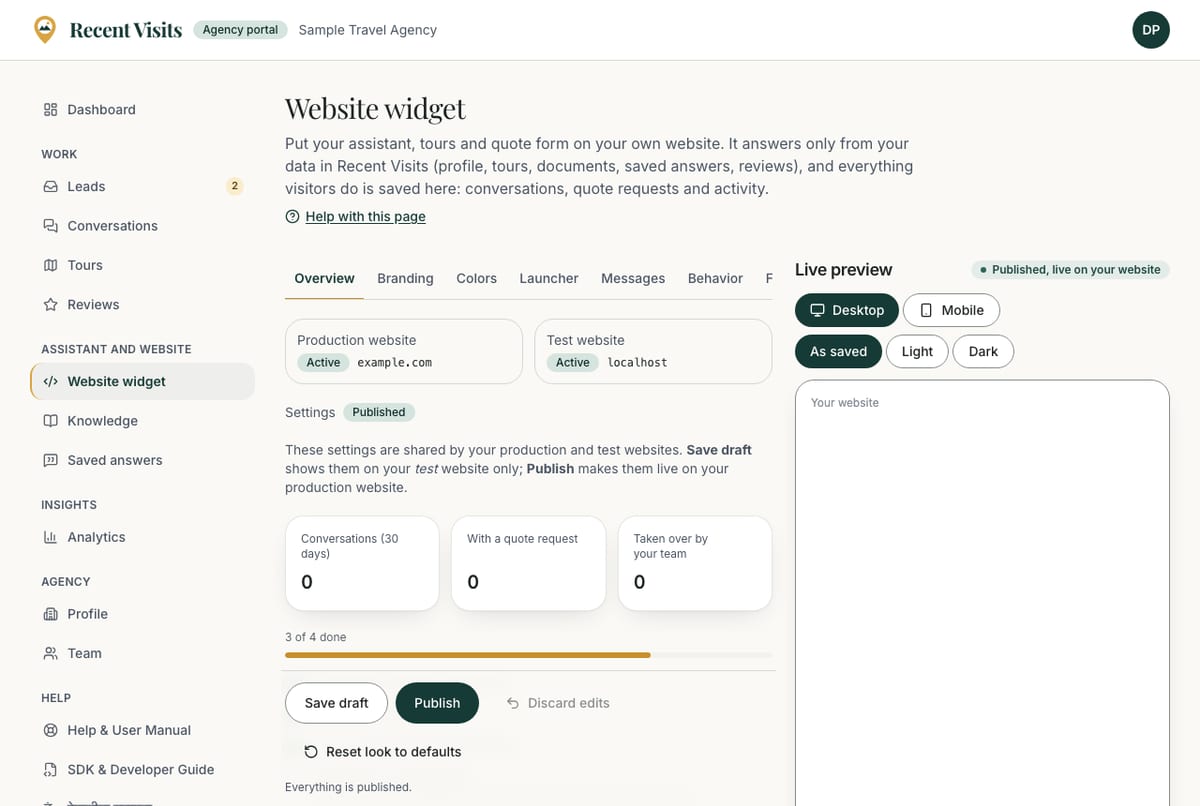
| Tab | What it holds |
|---|---|
| Overview | The state of the production and test websites, whether the settings are published, conversation counts for the last 30 days, and a setup checklist: Production website registered, Widget switched on, Look customised and published, First visitor conversation. |
| Branding | Assistant name, chat title and subtitle, and whether to show your agency logo. |
| Colors | Main and accent colours, light or dark, rounded corners. |
| Launcher | The button visitors press: its text, size, icon and side of the screen. |
| Messages | Welcome message, greeting and the small invitation next to the button. |
| Behavior | How the assistant sounds, suggested questions, whether it may give out your phone number, email and address, and "Talk to a person" with office hours. |
| Features | What the widget offers visitors. |
| Install | Register your websites and copy the snippet (next section). |
Buttons at the bottom of every tab except Install:
| Button | What it does |
|---|---|
| Save draft | Saves your edits. The draft shows on your test website only. |
| Publish | Makes the settings live on your production website within about a minute. |
| Discard edits | Undoes edits you have not saved. Disabled when nothing changed. |
| Discard draft | Appears when a draft is saved. Throws the draft away and goes back to the published settings. |
| Reset look to defaults | Clears the branding fields and suggested questions in the form (nothing is saved until you save or publish). |
A status line under the buttons says "Unsaved edits…", "A draft is saved…" or "Everything is published." The settings are shared by the production and test websites.
Your websites: production and test#
Each environment has its own card with the title Production website or Test website and a badge: Not set up, Active or Switched off.
| Field or item | Type | Required? | Explanation | How to use it |
|---|---|---|---|---|
| Register your website / Website domain | Text | Yes, to use the widget | Your domain, for example youragency.com (placeholder). Subdomains such as www. are covered over https. The Test card also accepts a staging domain or localhost with any port. Messages: "The production website must be a real domain. Use localhost on the Test environment." and "Enter a domain such as youragency.com (no wildcard or port). Shared hosting domains like github.io on their own are not accepted." A green line shows what will be registered. Domains are matched, not verified: register only domains you control. | Type the domain only, with no https:// or page path. |
| Register website / Change domain | Button | n/a | Saves the domain. Disabled when the box is empty, invalid or unchanged. | Press it once. |
| Add this to the production (or test) website | Code block | n/a | The script snippet with your public key. Copy snippet copies it. The key identifies your widget; it is not a password and only works on the registered domain. | Paste it into your site. See Installation. |
| Widget address (API base) and Public key | Text | n/a | The address the widget loads from and your widget key. | Use them only if a developer asks. |
| Switch off / Switch on | Button | n/a | Turns that environment's widget off or on at once, without asking. | Use it to pause the widget. |
| Revoke this key (register again for a new one) | Button | n/a | Revokes the key at once, without asking. Register the domain again to get a new key. | Use it if a key was shared by mistake. |
The production card says chats and quote requests from your live website reach your inbox and Leads. The test card says it shows your saved draft, has a small message budget, and its chats and quote requests are not sent to you; test chats are deleted after 7 days.
How to set up the widget#
- As an owner, open Assistant and website → Website widget → Install.
- Under Production website, type your domain and choose Register website.
- Customise the look on the other tabs, then choose Publish.
- Copy the snippet and ask your web developer to add it to your site.
- Watch the Conversations page for your first chat.
Expected result#
The chat button appears on pages of the registered domain. Visitor chats appear under Work → Conversations, and quote requests under Work → Leads. See Conversations, knowledge and saved answers.
Troubleshooting#
| Symptom | Fix |
|---|---|
| I only see "Your websites" and no editor | You are a manager. Ask an owner. |
| The widget does not show on my site | Check the domain, that the card says Active, and the snippet. See SDK troubleshooting. |
| Changes do not show on production | Choose Publish; a draft only shows on the test website. |
Last checked against the product:
Related articles
- Agency integration guide · How the widget knows which agency it belongs to, how environments and drafts work, how quote requests reach your portal, and a go-live checklist.
- SDK installation · Install the Recent Visits widget with a script tag, add Subresource Integrity, run it locally, and understand the current npm status.
- SDK configuration reference · Every option the Recent Visits widget accepts: type, default, limits and an example. Invalid values are replaced by safe defaults.
- SDK troubleshooting · Fixes for the widget not appearing, wrong branding or content, options not applying, network and permission errors, Next.js and mobile problems, and quote requests that do not show up.
- Conversations, knowledge and saved answers · How your agency's website assistant is fed with your own documents and saved answers, and how to read, take over, hand back and close a visitor's chat; every field, button, badge and message on these three pages.
Still stuck? Contact us and tell us what you tried.