On this page
Three pages shape what the website widget (see the SDK guide) says on your own website. The widget answers only from your agency's data, never from other agencies' information.
Owners and managers can use all three pages.
Knowledge#
Assistant and website → Knowledge (/partner/knowledge, page title "Knowledge base") is where you add documents the assistant can use when a visitor asks about your agency or tours. The page says it is "only used when a traveler asks about your tours and is never shown to other partners." A blue notice adds: "The assistant treats documents as reference data. It will not follow instructions written inside them, and it never invents prices or availability beyond what you publish."
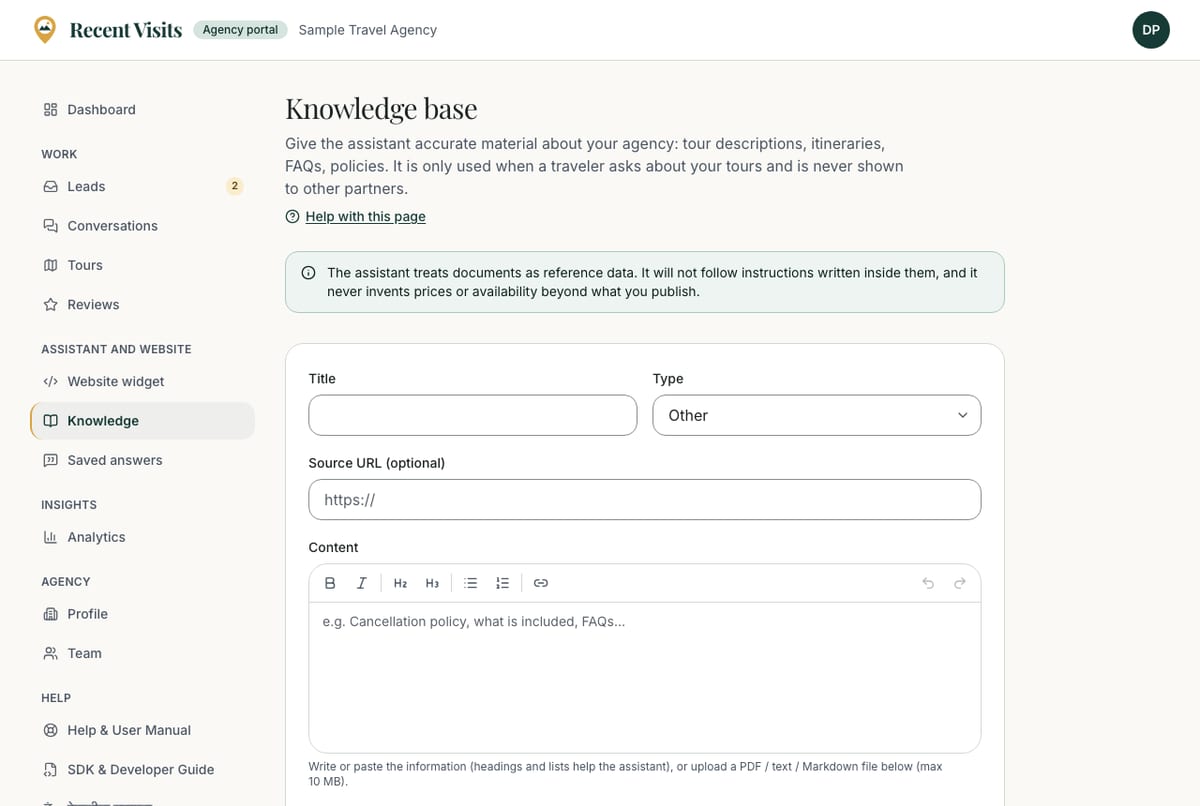
Add a document#
| Field or item | Type | Required? | Explanation | How to use it |
|---|---|---|---|---|
| Title | Text | Yes | 3 to 120 characters. | A name you will recognise, for example "Cancellation policy". |
| Type | Drop-down | Yes (default Other) | Tour description, Itinerary, FAQ, Pricing information, Policies, Website content, Other. | Pick the closest type. |
| Source URL (optional) | URL | No | A full address, up to 500 characters. | The page on your website the information comes from. |
| Content | Rich-text editor | Yes, unless you upload a file | Placeholder "e.g. Cancellation policy, what is included, FAQs…". Hint: "Write or paste the information (headings and lists help the assistant), or upload a PDF / text / Markdown file below (max 10 MB)." Up to 20,000 characters; too long: "Content is too long (max 20,000 characters)." | Write what you want travellers to be told. |
| File (optional) | Drop zone / file picker | No | PDF, TXT or MD ("Drop a PDF or text file here, or choose one"). Up to 10 MB by the form's rule. With no written content, the text is read from the file. Errors: "Only PDF, plain text and Markdown files are accepted." and "Files must be 10 MB or smaller." | Upload a brochure or policy. |
| Add to knowledge base | Button | n/a | Saves, reads and indexes the document. Success: "Document added and indexed for the assistant." If neither text nor a readable file is given: "Add some text or upload a readable document." | Press it once. |
You can add up to 20 documents an hour; after that you see "You are doing that too often. Please wait a moment."
The documents list#
Under Documents you see up to 100 documents, most recently updated first. An empty list says "No documents yet."
| Column / control | Explanation |
|---|---|
| Title, type, date, file name | For example "faq · 15/10/2026 · policy.pdf". |
| Status badge | indexed (green): the assistant can use it. pending: not indexed yet. failed: reading or indexing failed; remove it and add it again, or paste the text. |
| Remove | Deletes the document and its indexed copy at once, with no confirmation and no message. |
- Documents are private to your agency. Another agency's assistant cannot retrieve them.
- The assistant treats documents as reference material, not instructions. Text inside a document that tries to give it orders is ignored.
- Write what you want travellers to be told: policies, what is included, how payment works. Keep it factual and current; remove documents that are out of date.
Saved answers#
Assistant and website → Saved answers (/partner/answers) are your own ready answers to common questions. The page says: when a visitor asks one of them, your assistant replies with your answer straight away, and it uses them as a source for similar questions.
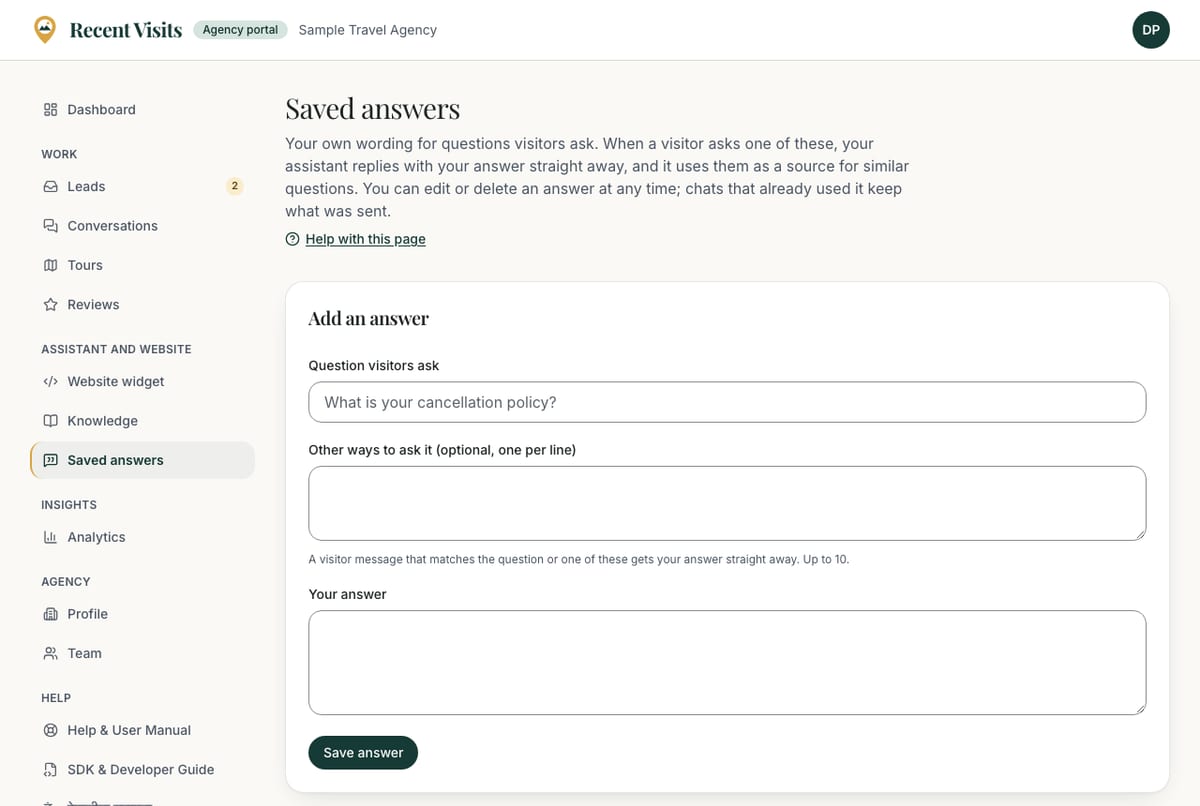
Add or edit an answer#
| Field or item | Type | Required? | Explanation | How to use it |
|---|---|---|---|---|
| Question visitors ask | Text | Yes | 3 to 300 characters. Placeholder "What is your cancellation policy?". Error: "Write the question". | Write the question the way a visitor would. |
| Other ways to ask it (optional, one per line) | Text area | No | Up to 10 lines of 3 to 300 characters; blank lines and duplicates are dropped. Hint: "A visitor message that matches the question or one of these gets your answer straight away. Up to 10." Error: "At most 10 alternative wordings". | Add wordings you often see. |
| Your answer | Text area | Yes | 1 to 2,000 characters. Error: "Write the answer". | Write the answer as you want it said. |
| Save answer / Save changes | Button | n/a | Creates a new answer, or saves an edit. Success: "Saved. Your assistant uses it from now on." You can keep up to 200 answers: "You can save up to 200 answers." Up to 120 changes an hour. | Press it once. |
The answers list#
Under the Add an answer card, each answer shows the question, a Off badge when switched off, a From a chat badge when saved from a conversation, "Used N times · last <date>", and your answer text. An empty list says "No saved answers yet. Add your cancellation policy, payment terms, what to bring… or save a good assistant reply from a conversation."
| Control | What it does |
|---|---|
| Turn off / Turn on | Stops or resumes using that answer. The answer stays in the list; no confirmation. |
| Delete | Deletes the answer at once, with no confirmation. Chats that already used it keep what was sent. |
| Edit | Opens the same form with the current wording and a Save changes button. |
Good first answers: cancellation policy, payment terms, group size, what to pack.
Conversations#
Work → Conversations (/partner/conversations) lists chats from your website widget (visitors on your production website; chats from the test website never appear). A number beside the menu item counts chats with a visitor message you have not seen and chats where the visitor asked for a person. Each chat shows the visitor's first name only (if they gave one). Visitors are asked never to type an email address or phone number; if they do, it is removed before it is stored. Contact details reach you only when a visitor sends a quote request and accepts a quote.
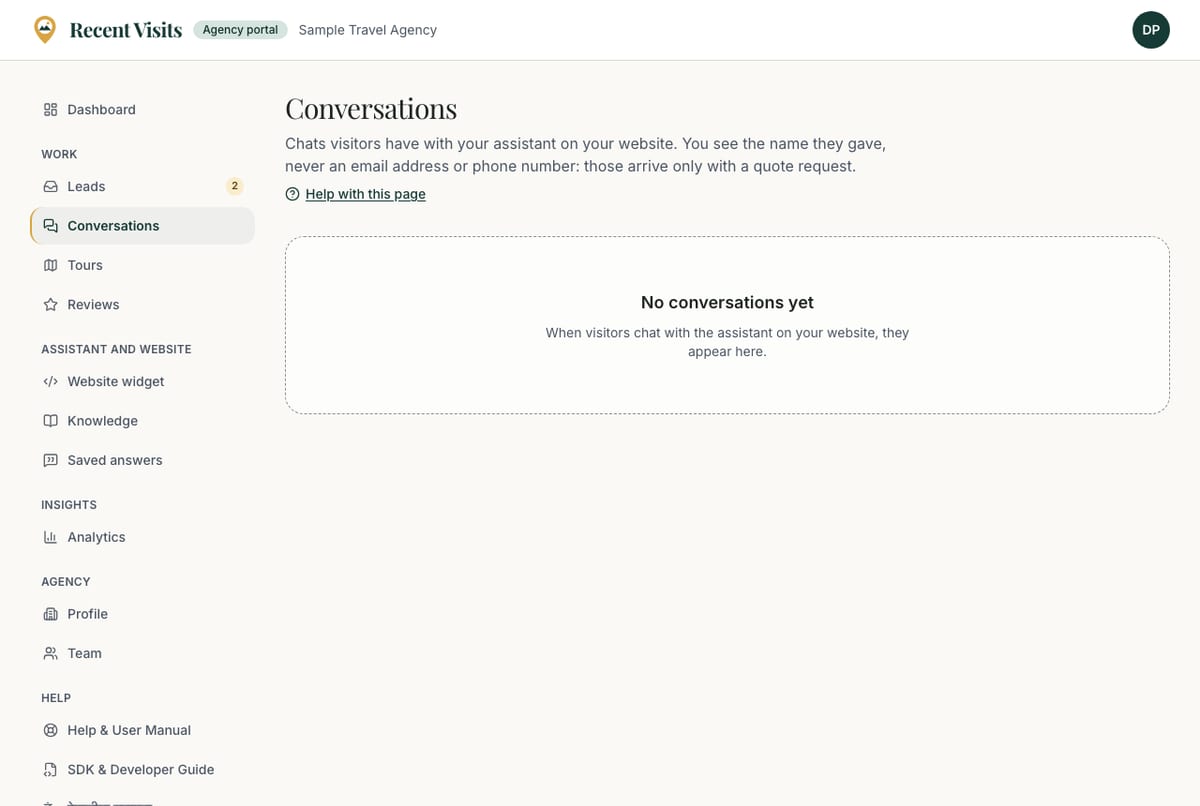
The conversations list#
The list shows your 50 most recent chats. When there are none: "No conversations yet. When visitors chat with the assistant on your website, they appear here."
| Item | Explanation |
|---|---|
| Visitor name | The first name they gave, or "Visitor". |
| Asked for you | The visitor asked to talk to a person and nobody has taken over. |
| You are live | A team member has taken over this chat now. |
| Closed | The chat was closed. |
| New message | A visitor message you have not opened yet. |
| Quote requested | The visitor also sent a quote request. |
| Title line | The chat's title, or "(no title)". |
| "N messages · date time" | How many messages, and when the last one arrived. |
Choose a row to open the chat.
One conversation#
The page shows "Started <date>" and a note that you see the name only. If the visitor sent a quote request you see a Quote requested badge and See the request in Leads. The chat shows the visitor on the left; the assistant and your team on the right (your team's messages carry your agency name; assistant messages say "Assistant"). New messages arrive by themselves while the tab is open (it checks every few seconds, more slowly when quiet, and stops for a closed chat or a hidden tab).
| Control | Shown when | What it does |
|---|---|---|
| Status line | Always | "The assistant is answering." (with The visitor asked for you if they asked), "Live You have this conversation." / "<colleague> has this conversation.", or "Closed." |
| Take over | The assistant is answering | The assistant goes silent and you write to the visitor. |
| Hand back to the assistant | A person has the chat | The assistant answers again. |
| Close conversation | Not closed | Ends the chat. A closed chat says "This conversation is closed." and cannot be answered. |
| Reply to the visitor box (placeholder "Write to the visitor…") | You are live | Text area, 1 to 2,000 characters. Empty: "Write a message first." |
| Send | You are live | Sends your reply as your agency. The box clears. |
| Save as an answer (under each assistant reply) | An assistant message | Opens a small form with the visitor's question and the reply filled in; Save as answer adds it to your saved answers ("Saved as an answer."). |
The takeover ends by itself after 15 minutes without a reply from you, and the assistant resumes. If a visitor asks for a person and nobody takes over within about 10 minutes, the widget offers the quote form instead. Outside your office hours, if you set them, it does so straight away. If a colleague has the chat, the status line says "<name> has this conversation." Actions are limited to 600 per hour per person. Chats without a quote request are deleted after 90 days.
How to take over a chat#
- Open Work → Conversations and choose a chat marked Asked for you.
- Choose Take over, then write in the reply box and choose Send.
- When you are done, choose Hand back to the assistant or Close conversation.
Expected result#
The visitor sees your messages in the widget as coming from your agency, and the assistant stays silent while you are live.
Troubleshooting#
| Symptom | Cause and fix |
|---|---|
| The Conversations list is empty | No visitor has chatted on your production website yet, or the widget is not installed. Test-website chats are not shown. See SDK troubleshooting. |
| A document says failed | Remove it and add it again, or paste the text instead of uploading a file. |
| "This conversation cannot be taken over right now." | Someone else has it, or it is closed. Open the list again. |
| "This conversation is not live." | The takeover ended (15 minutes without a reply). Take over again. |
| The assistant ignores a saved answer | Check it is not switched Off and that its wording is close to what visitors ask. Add more wordings under "Other ways to ask it". |
Last checked against the product:
Related articles
- Agency integration guide · How the widget knows which agency it belongs to, how environments and drafts work, how quote requests reach your portal, and a go-live checklist.
- Quote requests and leads · How travellers' quote requests reach you, every control on the Leads list and the request page, how to send a quote and messages, what each status means and when you see the traveller's email and phone number.
- SDK security and privacy · What is public and what is secret, how sessions and the domain check protect your agency, Content-Security-Policy settings, what data the widget sends and keeps, and visitor disclosure.
- Website widget in the portal · What the Website widget page of the agency portal contains, who can change it, how the production and test website cards work, and where the SDK guides explain the settings in detail.
Still stuck? Contact us and tell us what you tried.