On this page
Tours are what travellers browse at /tours and what the AI assistant recommends. You publish your own tours. There is no approval step before a tour goes live; staff can pause or reject a tour afterwards. Open Work → Tours (/partner/offers).
The portal calls a tour an "offer" in a few places (the list column Offer, the button Save offer, the message "Offer saved."). They mean the same thing.
Create a tour#
Choose New tour (on the Tours page, in the dashboard heading, or in the empty state). The New tour page says "Saved as a draft. Publish it from the tour page when it is ready; you can add the feature image there too." A new tour is saved as a draft, which only your team can see.
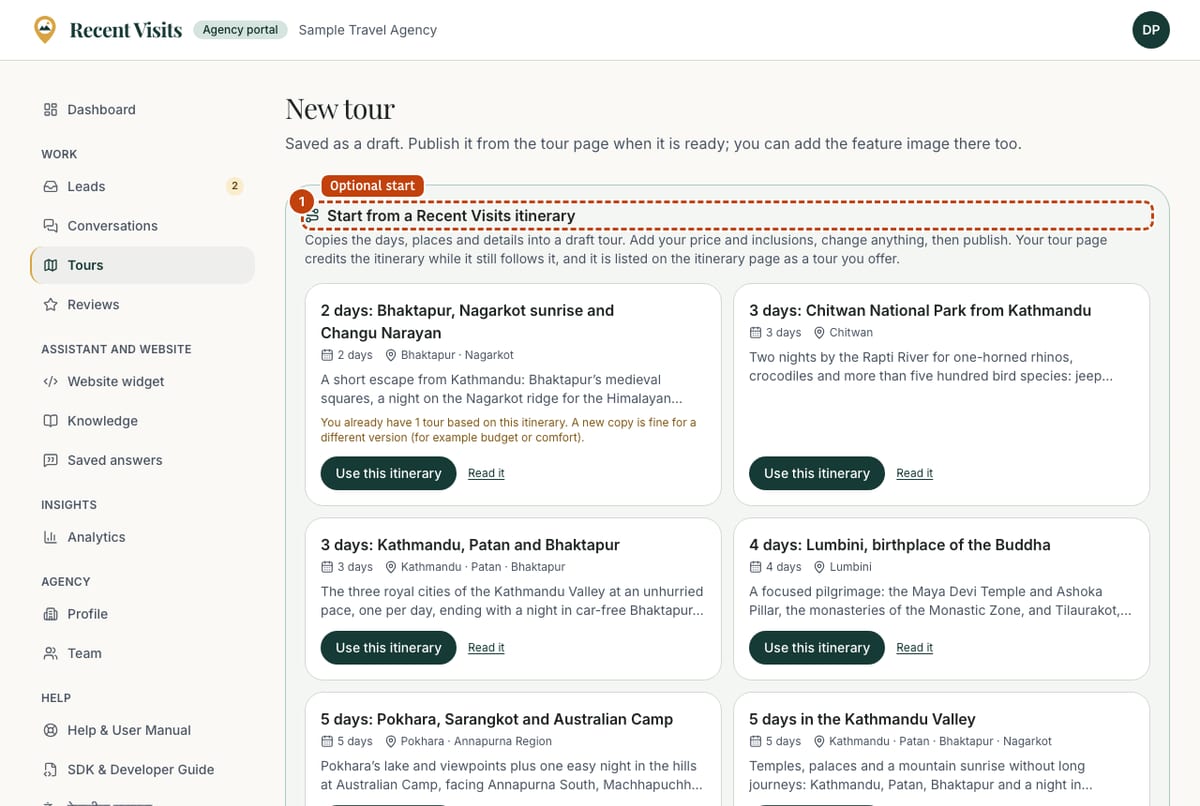
You can also start from a Recent Visits itinerary (Start from an itinerary on the Tours page, which jumps to the picker): this creates a draft with the title, summary, places, length, difficulty, style, ideal-for and every day filled in. You then add your price and inclusions and make it your own.
Start from a Recent Visits itinerary#
The block Start from a Recent Visits itinerary lists published itineraries. If none are published it says "No itineraries are published yet…" and you create the tour from scratch.
| Item | Type | Explanation | How to use it |
|---|---|---|---|
| Itinerary card | Card | Title, number of days, places and a two-line summary. | Read it, then decide. |
| "You already have N tours based on this itinerary…" | Note | Shown when you already copied it. A new copy is fine for another version (for example budget or comfort). | Make a second copy only for a genuinely different tour. |
| Use this itinerary | Button | Creates a draft copy at once (no confirmation) and opens it with "Draft created from the Recent Visits itinerary “…”". | Then add your price and what is included, adapt the days and publish. |
| Read it | Link | Opens the public itinerary in a new tab. | Check it first. |
| start from scratch link | Link | Appears when you arrived from an itinerary page (?from=), which shows only that itinerary. | Use it to see the blank form instead. |
After copying, your tour page credits the itinerary and the itinerary page lists your tour as a tour you offer, while your tour covers at least half of the itinerary's places and its length is within two days of the itinerary's. If you change it further, the credit is dropped quietly; the edit page says so, and notes when Recent Visits updated the itinerary after you copied it.
The form#
The same form is used to create and to edit. It has a main column and a side column. On a phone the side column follows the form and the buttons sit at the end.
| Field or item | Type | Required? | Explanation | How to use it |
|---|---|---|---|---|
| Title | Text | Yes | 4 to 120 characters. Error: "Give the tour a clear title". | Say what the trip is. |
| Summary | Text area | Yes | 20 to 200 characters; shown on tour cards. Hint: "One or two sentences for cards (max 200 characters)." Error: "Summarise the tour in a sentence or two". | Write one or two clear sentences. |
| Days | Number | Yes | 1 to 120; starts at 7 on a new tour. | The number of days of the tour. |
| Price from | Number | No | An indicative price per person, 0 to 1,000,000. Section text: "Prices are indicative “from” prices per person; travellers request a quote for the exact amount." Empty shows "Price on request" in the preview. | Enter a realistic starting price. |
| Currency | Drop-down | No | USD (default), EUR, GBP, NPR, INR, AUD. | Choose the currency of Price from. |
| Difficulty | Drop-down | No | Not applicable (default), Easy, Moderate, Challenging, Strenuous. | Be honest; the assistant will not match a hard tour to someone who asked for easy. |
| Destinations | Filterable multi-select | Yes (at least one) | Published Nepal destinations, grouped by region, up to 12. A counter shows "N selected of up to 12". Error: "Choose at least one destination". | Pick every place the tour visits; the assistant only recommends tours that cover the places a traveller names. |
| Activities | Filterable multi-select | No | Up to 12. | What travellers do on the tour. |
| Travel style | Pill buttons (several) | No | Culture, Nature, Adventure, Wildlife, Spiritual, Luxury, Budget, Photography, Food. | Tick all that fit. |
| Ideal for | Pill buttons (several) | No | Solo, Couples, Families, Groups, Seniors, First timers. | Tick who the tour suits. |
| Languages the tour is guided in | Pill buttons (several) | No | The same 21 languages as the profile. | Tick the languages your guides use on this tour. |
| Includes | Tag box | No | Up to 40 items, 200 characters each. Press Enter or a comma to add an item; Backspace on an empty box removes the last; the same item twice is ignored. Suggestion chips such as "Airport transfers", "Accommodation", "Licensed guide" add with one click. | Short items travellers can scan. |
| Excludes | Tag box | No | Same rules. Suggestions include "International flights", "Nepal visa", "Travel insurance", "Tips". | Be specific about what is not covered. |
| Itinerary | Day builder | No | Up to 60 days. Each day has a title (2 to 120 characters, placeholder "Day 1: e.g. Arrive in Kathmandu, transfer to hotel") and an optional note (up to 600 characters). Day numbers follow the order automatically. | See the table below. |
| Description | Rich-text editor | No | "Headings, lists and links are welcome." Up to 20,000 characters. Error when too long: "Text is too long (max 20,000 characters)." | Describe the route, pace and accommodation. |
| Tour page on your website (optional) | URL | No | Hint: "Shown as “View on partner site”. Bookings and payments happen with you, never on Recent Visits." Up to 500 characters. Error: "Enter a full URL starting with https://". | Link the matching page on your site. |
| External enquiry URL (optional) | URL | No | Hint: "Leave empty to use the Recent Visits quote form." If you fill it in, travellers are sent to your own enquiry page instead. | Leave it empty if you want quote requests in your portal. |
The day builder has these controls:
| Control | What it does |
|---|---|
| Add day | Adds an empty day at the end (disabled at 60 days). |
| Fill to tour length | Adds empty days until there is one per day in Days (up to 60). |
| Arrow up / arrow down buttons | Move a day up or down ("Move day 2 up"). |
| Bin button ("Remove day 2") | Removes that day at once, without asking. |
| Empty state | "No days yet. Add them one by one, or fill the plan to match the tour length." |
Side column: preview and checklist#
| Item | Explanation |
|---|---|
| Preview | A live card as travellers see it: image, your agency name, title, places, summary, up to three inclusions with ticks, number of days and price. Placeholders: "Tour title", "The summary appears here.", "Price on request"; the image area says "Add a photo after creating the draft" on a new tour and "No feature image yet" later. |
| Ready to publish? | A tick list: Clear title; Summary for cards; At least one destination; Activities chosen; Price from; Three or more inclusions; Itinerary covers all N days (or "Day-by-day itinerary"); Full description (100+ characters). It is advice only: it does not stop you publishing. |
| Create draft / Save offer | The main button (a full-width button in the side column on large screens, and under the form on a phone). Create draft on a new tour saves it and opens the edit page. Save offer on an existing tour saves the changes; success shows "Offer saved." Under it: "Saved as a draft. Publish it from the offer page when it is ready." or, for a live tour, "This tour is live: changes are public as soon as you save." |
Be accurate. Prices are shown as indicative "from" prices and the quote you send is what travellers rely on.
Photos#
Photos are added on the edit page (not while creating), in the side column.
Feature image#
| Field or item | Type | Required? | Explanation | How to use it |
|---|---|---|---|---|
| Choose an image / Choose a new image | Drop zone / file picker | No | JPG, PNG, WebP or AVIF, up to 8 MB. Errors: "Use a JPG, PNG, WebP or AVIF image." and "Images must be 8 MB or smaller." | Pick a landscape photo of the trip itself. |
| Crop tool | Drag and slider | n/a | A fixed 16:9 frame: drag the photo to position it, use the Zoom slider (or pinch) to zoom. It shows the selected size in pixels. Use this crop confirms; Cancel discards. | Frame the main subject, then confirm. |
| Low quality warning | Notice | n/a | Shown when the selection is below 1200 × 675 pixels: "…may look blurry on large screens… You can still use it." | Zoom out or choose a bigger photo, or use it anyway. |
| Adjust crop of the current image | Button | n/a | Re-opens the crop tool on the current image. | Use it to reframe. |
| Describe the photo | Text | No | Up to 160 characters, for people who cannot see the image. Placeholder "e.g. Trekkers above Ghorepani at sunrise". Defaults to the tour title if left empty. | Describe what is in the photo. |
| Upload image / Replace image | Button | n/a | Enabled after you confirm a crop. Uploads and sets it as the feature image. Success: "Image uploaded." (or "Image uploaded and live." on a published tour). | Press it after cropping. |
| Remove image | Button | n/a | Asks "Remove this image from the tour?". If you uploaded the file, it is deleted; if staff added it, it is only detached. Success: "Image removed." | Use it to take the image off. |
More photos#
| Field or item | Type | Required? | Explanation | How to use it |
|---|---|---|---|---|
| "N / 5 photos" counter | Text | n/a | A tour can have up to 5 photos in total, the feature image included. At the limit: "This tour has the maximum of 5 photos. Remove one to add another." | Remove one before adding another. |
| Add a photo | Drop zone | No | JPG, PNG, WebP or AVIF up to 8 MB. The photo is reduced in your browser (longest side 2400 pixels) and location data is removed. Error: "This photo could not be read. Try a JPG or PNG." | Pick a photo of places, lodges or the team. |
| Describe the photo | Text | No | Up to 160 characters; defaults to the tour title if empty. | Write a short description for screen-reader users. |
| Add photo | Button | n/a | Uploads the photo into the gallery on the tour page. Success: "Photo added." If the tour has no feature image yet, the first extra photo becomes the feature image. | Press it to upload. |
| Feature (star) | Button on each photo | n/a | Makes that photo the feature image; the old feature image takes its place. Success: "Feature image changed." | Use it to choose the cover. |
| Remove (bin) | Button on each photo | n/a | Asks "Remove this photo from the tour?" and deletes it. Success: "Photo removed." | Use it to drop a photo. |
Only upload photos you have the right to publish. Photo uploads are limited to about 20 per hour for the whole agency (feature image and extra photos together). On a published tour, an uploaded image is public as soon as it is saved.
Publish and unpublish#
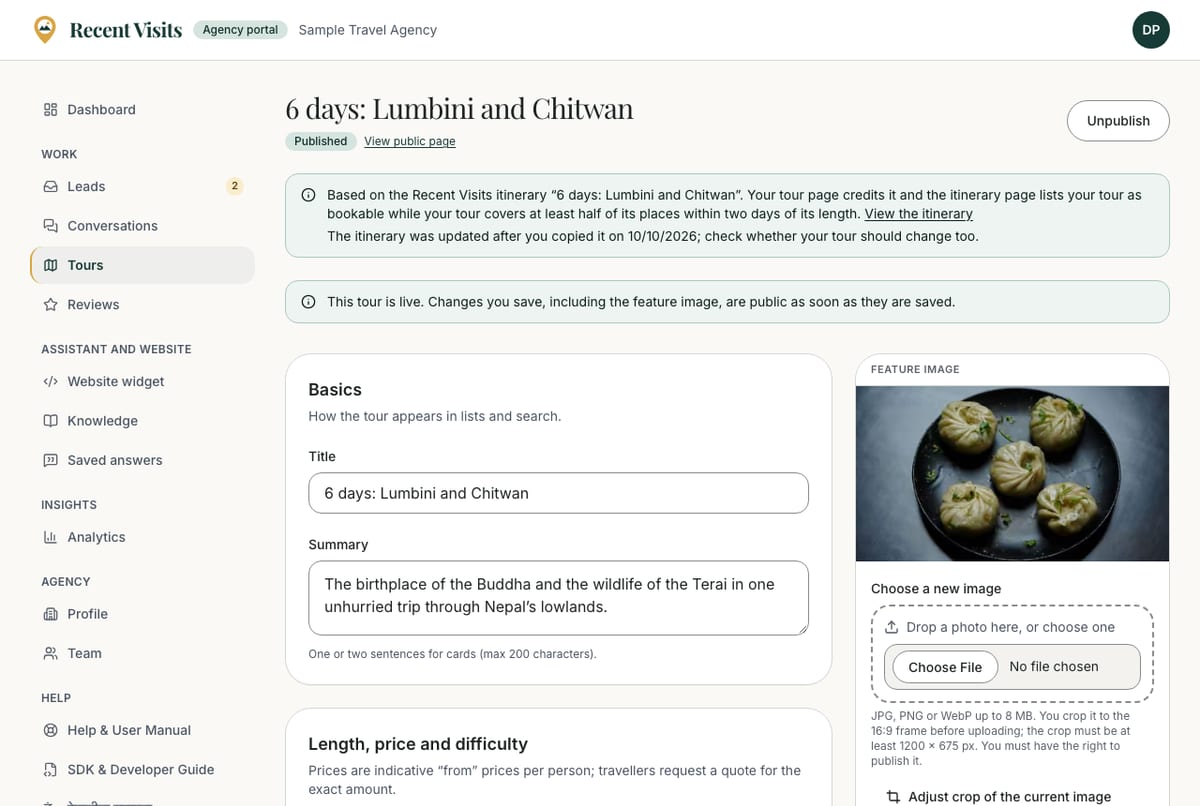
On the edit page choose Publish (top right). To publish you need a title, a summary of at least 20 characters, the number of days and at least one destination. A photo, a price and an itinerary are not required, but tours without them are less useful to travellers.
| Button / message | What it means |
|---|---|
| Publish | Makes a draft, paused or rejected tour live at once, with no confirmation. Success: "Your tour is live." |
| Unpublish | Moves a live tour to Paused (hidden) at once. You can publish it again. |
| "Your agency is not active yet. Tours can be published once Recent Visits has completed onboarding." | Your agency is pending or suspended. Only staff activate it. |
| "Add a title, a summary, … before publishing." | The text lists what is missing (for example "Add a summary, at least one destination before publishing."). |
| "This tour is already live." | It is published already; saved changes are public at once. |
| "Only live tours can be unpublished." | Unpublish works only on a published tour. |
- Edits to a live tour are public immediately when you save. The edit page says so in a blue notice.
- A published tour also shows a View public page link under its title.
- If a tour has a paid boost, the edit page notes "Paid boost (level)". Boosts are set by staff only.
Statuses#
| Status | Meaning |
|---|---|
| Draft | Not public. |
| Published | Live. |
| Paused | Hidden (you unpublished it, or staff paused it). |
| Rejected | Staff removed it; read their review notes, fix it and publish again. |
| Submitted, In review, Approved | Older statuses that staff may use; the portal itself uses draft, published and paused. You can publish a tour in any of these. |
The Tours list#
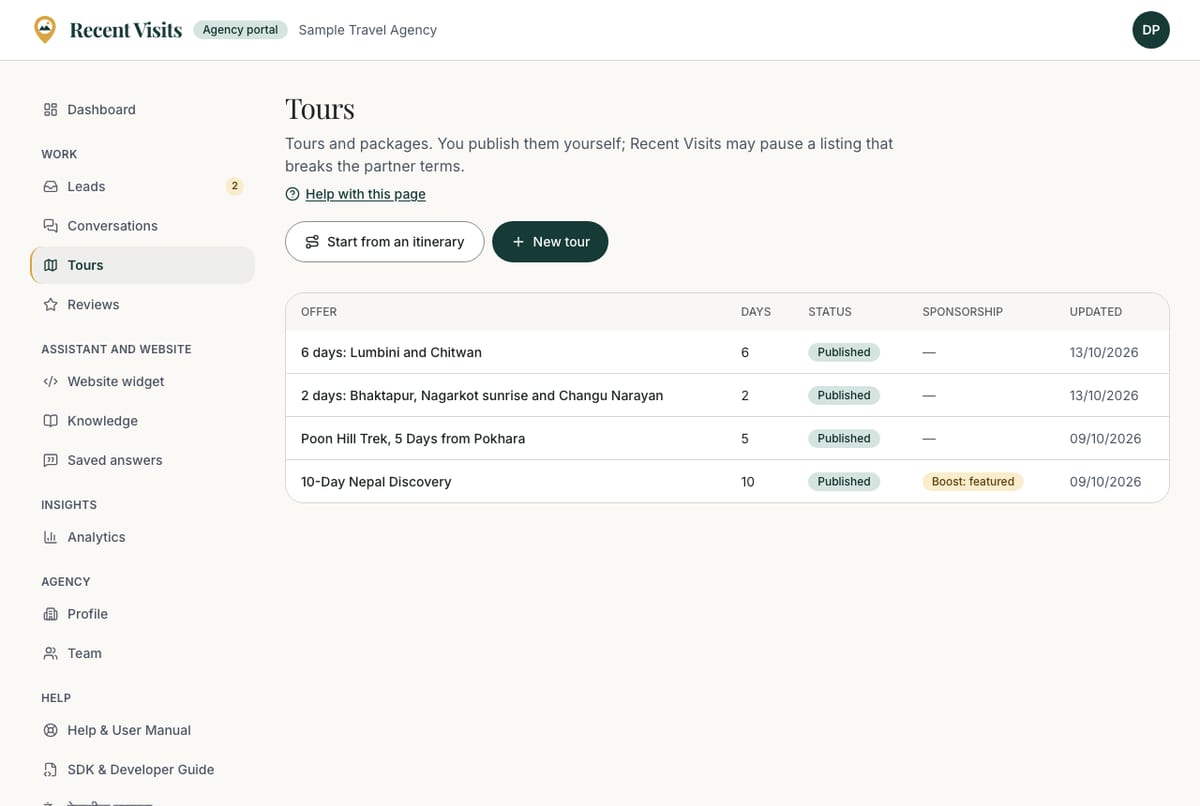
The Tours page (/partner/offers) lists your agency's tours (up to 100), most recently changed first, with no paging or filters.
| Column / control | Explanation |
|---|---|
| Offer | The tour title. Choose it to open the edit page. |
| Days | The length in days. |
| Status | A badge: Draft, Submitted, In review, Approved, Published, Rejected or Paused. |
| Sponsorship | "Boost: <level>" while a paid Featured boost is active, otherwise a dash. Staff set it. |
| Updated | The date of the last change (day/month/year). |
| Start from an itinerary | Button in the heading: jumps to the itinerary picker on the new tour page. |
| New tour | Button in the heading: opens the blank form. |
| Empty state | "No offers yet. Create your first tour, or start from a ready-made Recent Visits itinerary and add your price. Tours are saved as drafts until you publish them." |
When staff step in#
Staff can pause or reject any tour after it is live, with Review notes shown on the tour ("Review notes: …") and in your Needs attention list, and you receive an email ("Your tour … needs changes"). Fix the problem and choose Publish again.
Which tours reach travellers#
A tour appears in the directory when it is published and your agency is active. It is recommended by the AI assistant only when it is published, your agency is verified, and it fits the traveller's trip: the length is within a day of what they asked for, it covers a place they named, its difficulty and price are not above what they said, and it passes a minimum fit score. Staff can tune these rules; the values here are the defaults. Traveller reviews of your agency are one small, separately weighted input; your plan is not. Paid Featured placement, if you buy it, only reorders tours that already fit and is always labelled.
How to create and publish a tour#
- Open Work → Tours and choose New tour (or Start from an itinerary).
- Fill in at least Title, Summary, Days and one Destination, then choose Create draft.
- On the edit page add the price, inclusions, itinerary and description, then Save offer.
- Add a feature image and up to four more photos.
- Check the Ready to publish? list, then choose Publish.
Expected result#
The tour shows "Your tour is live." and a View public page link. It appears at /tours and on your public agency page, and the assistant may recommend it to travellers it fits.
Limits#
You can upload feature images and photos at a limited rate (about 20 per hour). Plans shown on the List your agency page are not enforced by the portal today: see Plans and fees.
Last checked against the product:
Related articles
- Quote requests and leads · How travellers' quote requests reach you, every control on the Leads list and the request page, how to send a quote and messages, what each status means and when you see the traveller's email and phone number.
- Best practices · Practical recommendations for profiles, tours, prices, photos, replies and reviews. Recommendations are advice, not platform rules.
- Troubleshooting for agencies · Fixes for common problems in the agency portal, with the exact messages: joining and documents, publishing, images, leads and quotes, invitations, access, conversations, reviews and closing the agency.
- The agency dashboard · A tour of the agency portal dashboard: the setup checklist, the Needs attention list, key figures, the funnel, the daily chart and the Top tours table, with what every item means and where it takes you.
Still stuck? Contact us and tell us what you tried.