On this page
This guide is for agency owners and team members. The agency portal at /partner is where you keep your listing up to date and answer travellers. It is organised page by page: every page of the portal has an article that explains each field, button and message on it.
Who can open the portal#
| Who | What they see |
|---|---|
| An agency owner or manager | The full portal for their agency. Owners also have the profile form, the team tools, the widget settings and the closing page. |
| A signed-in account without an agency | The message "This area is for travel partners." with the buttons Back to my account and Sign out. Join first: see Joining Recent Visits. |
| Someone who is signed out | They are sent to the sign-in page and come back to the portal afterwards. |
| Recent Visits staff helping an agency | The portal, with the account menu showing "Staff (viewing as agency)". |
An account can belong to one agency. The portal always shows the agency that account belongs to; there is no agency switcher.
How to open the portal#
- Sign in with the email your agency invited.
- Open Partner portal from the site footer, or go straight to
/partner/dashboard. If you are already on an agency team, the Partner portal page sends you to your dashboard. If you are not, it explains how to join: see Joining Recent Visits. - You can also use Go to dashboard in the Partner portal card on your account page.
The layout of the portal#
Every portal page has the same frame.
| Part | What it shows |
|---|---|
| Header | The Recent Visits logo, an Agency portal badge, your agency name (on wider screens), a Demo badge if your listing is a demo listing, and the account menu. |
| Sidebar menu | Grouped links to every page (below). The current page is highlighted. Counts appear as small numbers next to Leads (new requests) and Conversations (chats that need you). |
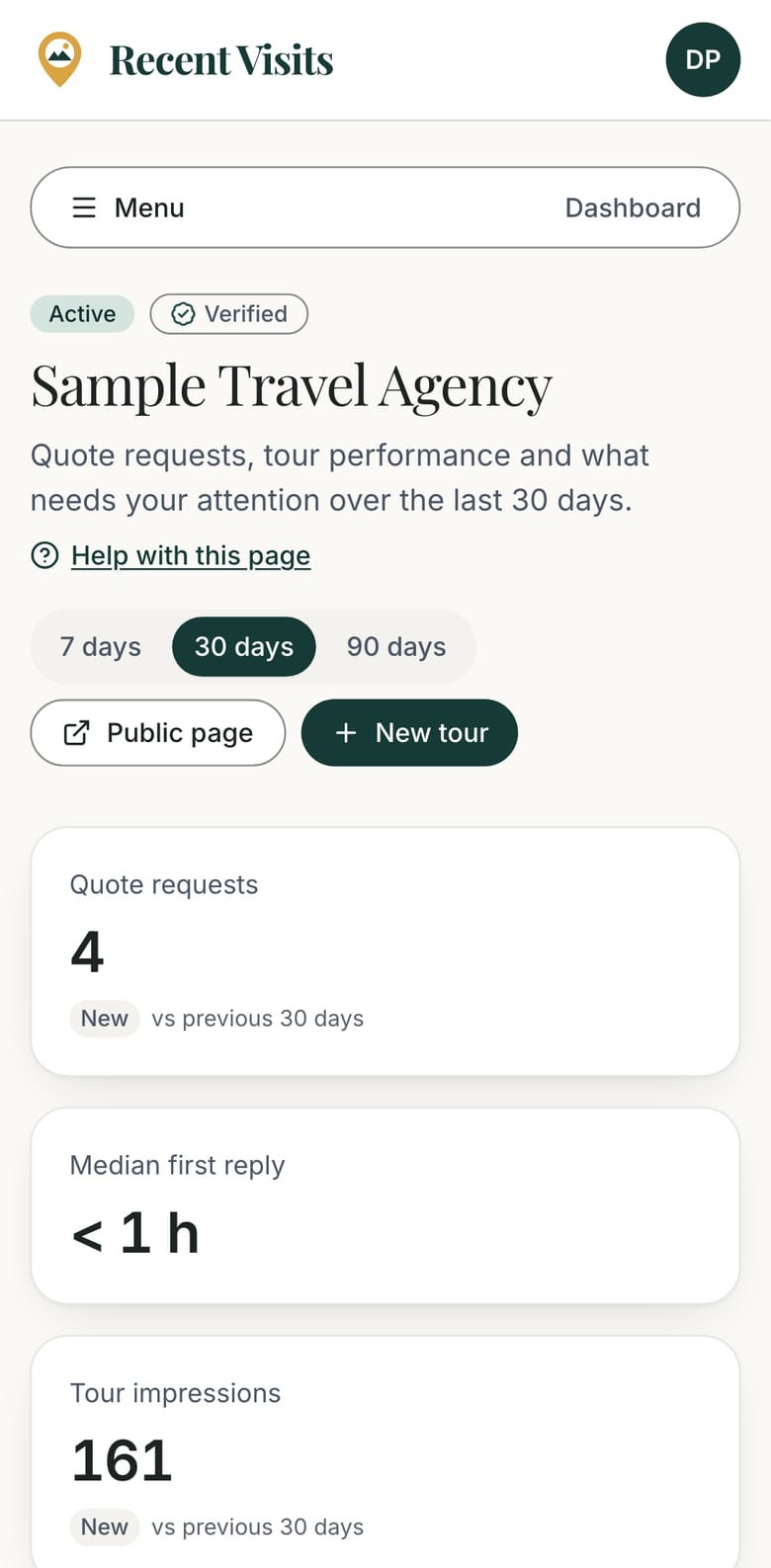
| Page heading | The page title, a short description and, on most pages, a Help with this page link that opens the matching help article in a new tab. |
| Skip to content link | Appears when you press Tab on a new page, for keyboard and screen-reader users. |
After you sign in, the sidebar groups the portal like this:
| Group | Pages | What they are for |
|---|---|---|
| (top) | Dashboard | What needs attention, key numbers, getting-started checklist. See The agency dashboard. |
| Work | Leads | Traveller quote requests: send quotes and messages. |
| Conversations | Chats from your website widget (when it is set up). | |
| Tours | Create, edit, publish and unpublish your tours. | |
| Reviews | Read traveller reviews and reply. | |
| Assistant and website | Website widget | Put the assistant, tours and quote form on your own site. |
| Knowledge | Documents the assistant may use when asked about your agency. | |
| Saved answers | Your own ready answers to common questions. | |
| Insights | Analytics | How travellers find and respond to your tours. |
| Agency | Profile | Your business details. |
| Team | Who has access. | |
| Help | Help & User Manual, SDK & Developer Guide | Open this guide and the developer guide in a new tab. |
The account menu#
Choose the round button with your initials, top right. It opens a small menu (use the arrow keys to move, Escape to close).
| Item | Type | What it does |
|---|---|---|
| Your name, email, role | Text | Shows who you are signed in as. The role reads Agency team, or Staff (viewing as agency) for staff. |
| Public profile | Link | Opens your public agency page once your agency is Active. Before that the menu says "Public profile after review" and there is no link. |
| My account | Link | Opens your traveller-side account page (trips, reviews, sign-in details). |
| Sign out | Button | Signs you out at once, without asking. |
On a phone#
Below the large-screen breakpoint the sidebar is replaced by a full-width Menu button that shows the current page name. Choose it to open the same menu as a drawer from the left; it closes when you pick a page, press Escape or tap outside it. Everything else behaves the same; wide tables and the quote form stack into one column.
The guides#
- Joining Recent Visits: claim or apply, documents, approval, invitations, statuses.
- Agency profile: the details you can edit and what only staff control.
- Managing tours: create, edit, photos, publish and what staff can do.
- Quote requests and leads: reply with a quote, messages, statuses, when you see contact details.
- Conversations, knowledge and saved answers
- Reviews and reputation
- Analytics
- Team and account: owners and managers, invitations.
- Best practices
- Troubleshooting
- The agency dashboard: the first page you see.
- Closing your agency: hide and delete your agency, and what is kept.
- Website widget in the portal: what the page does, and where the developer guide takes over.
- Plans and fees: what the List your agency page says.
- Website widget (SDK) guide: developers and owners adding the assistant to a website.
Owners and managers#
Each agency has owners and managers. Both can manage tours, quote requests, conversations, knowledge, saved answers and reviews, and see analytics. Only owners can edit the profile, manage the team, change the website widget settings and close the agency. See Team and account.
What staff control#
Some things are set only by Recent Visits staff and cannot be changed in the portal: your agency's status (pending, active, suspended), Verified badge, quality score, your logo and images, and any paid Featured placement. Staff can also pause or reject a tour after it is live, with a note you can see.
Demo listings#
If your listing is a Demo listing (built from public information during the beta), a Demo badge appears in the header and next to your agency name on the dashboard, and the dashboard shows the notice "This listing belongs to a demo partner. The agency, tours, prices and contact details are example data and not a real commercial offer." The same label appears on the public agency page. See Joining Recent Visits.
Fairness and transparency#
- Agencies pay a flat listing fee. A plain listing carries no per-tour label. Featured is a separately purchased boost that is always labelled, and it never lets in a tour that does not fit the traveller's trip.
- Reviews are written by travellers and read by staff. Your plan or sponsorship never changes your reviews or rating, and a review cannot be removed because it is critical.
- See How we make money for what travellers are told, and the privacy policy for how data is handled.
Getting help#
If something in the portal is unclear, start with Troubleshooting. Otherwise email partners@recent-visit.com (opens in a new tab).
Last checked against the product:
Related articles
- Joining Recent Visits · How to claim an existing agency listing or apply to list a new one, every field and document on the forms, how approval works, how the invitation page behaves and what each agency and request status means.
- The agency dashboard · A tour of the agency portal dashboard: the setup checklist, the Needs attention list, key figures, the funnel, the daily chart and the Top tours table, with what every item means and where it takes you.
- Quote requests and leads · How travellers' quote requests reach you, every control on the Leads list and the request page, how to send a quote and messages, what each status means and when you see the traveller's email and phone number.
- SDK and developer guide · Add your agency's own assistant, tour list and quote form to your website with the Recent Visits widget. Overview, how it works, and where to start.
Still stuck? Contact us and tell us what you tried.