On this page
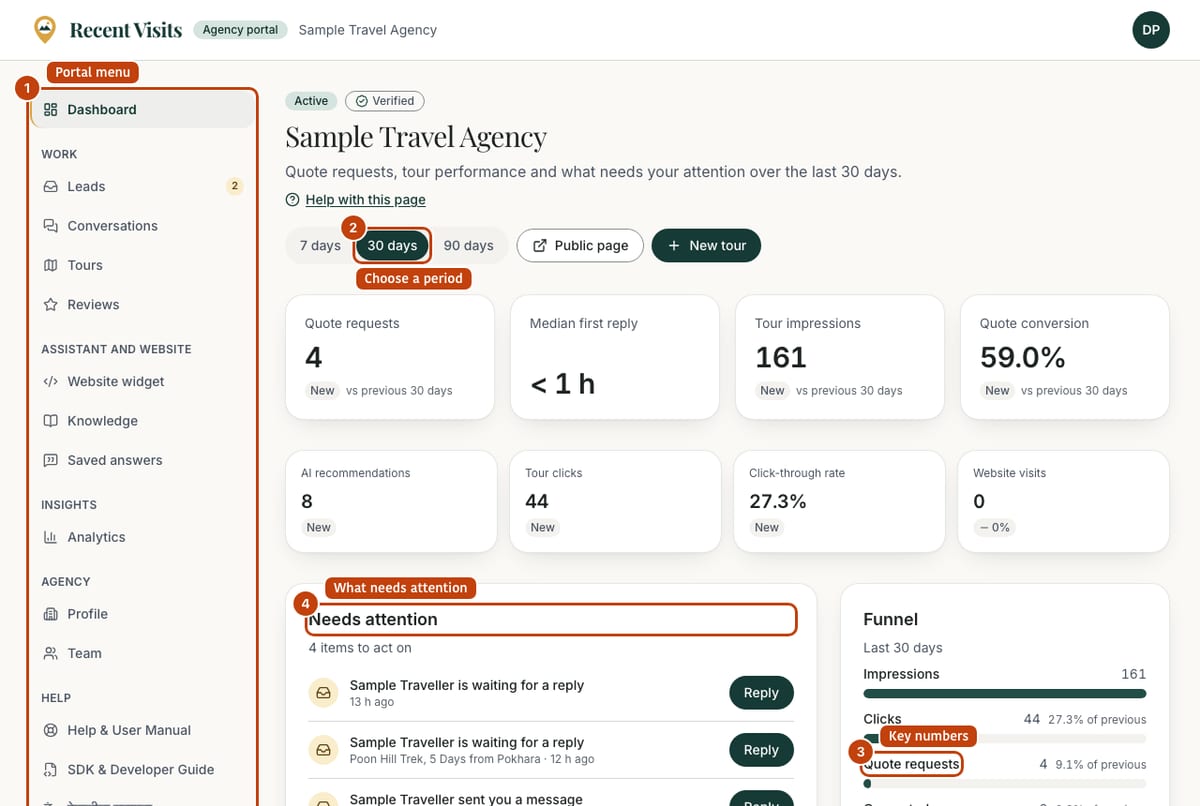
The Dashboard is the first page of the portal (/partner/dashboard). It tells you what needs doing today and how travellers respond to your tours. Until your agency is live with a published tour it works as a setup guide instead.
Who can open it and how#
Every owner and manager of the agency. Sign in, then choose Dashboard at the top of the sidebar. Owners see one extra item (the profile gap) that managers do not.
Layout of the page#
| Section | Shown when | What it holds |
|---|---|---|
| Heading | Always | Status badges, the agency name, a description, the period selector, Public page and New tour. |
| Demo notice | Your listing is a demo listing | A blue notice that the listing is example data. |
| Set up (agency name) | Setup mode (see below) | A checklist of steps to go live. |
| Key figures | Not in setup mode | Four large cards and four small cards. |
| Needs attention | Always | One row per thing to act on, each with a button. |
| Funnel or Getting started | Not in setup mode | A funnel once you have a published tour; otherwise a four-step checklist. |
| Performance | Not in setup mode | A daily chart of impressions, clicks and quote requests. |
| Top tours | Not in setup mode | Your best published tours. |
Setup mode#
The dashboard shows only the setup checklist (and the Needs attention list, limited to quote requests and tours that need changes) when your agency is not Active or you have no published tour. Demo listings skip setup mode. Statistics and empty charts stay hidden until you are live, so a new agency is not shown rows of zeros.
| Checklist step | Done when | Button |
|---|---|---|
| Approved by Recent Visits | Always ticked. | None |
| You joined the partner portal | Always ticked. | None |
| Complete your profile | You have a logo, a description, a contact email and a phone number. Otherwise it says "Add a logo, a description…". Managers see "Your agency owner can do this." | Edit profile (owners only) |
| Draft your first tour | You have at least one tour of any status. Before the agency is live it says "You can prepare tours now; they go live after our review." | New tour |
| Final review by Recent Visits | The agency is Active. Text: "We check your profile and licence, then set your agency live. We email your team when it is live." When live: "Done. Your agency page is public." If suspended: "Your agency is suspended. Contact us to resolve it." | Contact us when suspended |
| Publish a tour | You have a published tour. Before you are live: "Available once your agency is live." | Open tours (once live) |
| Invite your team (optional) | A second person has joined, or a manager invitation is pending. | Invite (owners only) |
If the owner asked to close the agency, the "Final review" step reads "Closing on <date>. Until then an owner can keep the agency." with a Keep the agency button: see Closing your agency.
The heading#
| Item | Type | Explanation |
|---|---|---|
| Status badge | Badge | Active, or the agency status in words (for example pending). Set by staff. |
| Verified | Badge | Shown when staff verified your identity and licence. |
| Demo | Badge | Shown for demo listings. |
| Period selector (7, 30, 90 days) | Link group | Not shown in setup mode. Changes the whole dashboard to the last 7, 30 (default) or 90 days. Reloads the page with ?days=. Any other value falls back to 30. |
| Public page | Button (link) | Opens your public agency page once the agency is Active. Before that it is disabled and reads "Public page after review". |
| New tour | Button (link) | Opens the new tour form. |
Needs attention#
A list of up to the following rows, each with one button. The heading says "N items to act on" or "You are up to date". When there is nothing, you see "Nothing needs your attention right now."
| Row | Icon | Appears when | Button, where it goes |
|---|---|---|---|
| "<Traveller> is waiting for a reply" | Inbox | A request is still New. The oldest five are listed, with the tour name and how long ago. | Reply, to that request on the Leads page. |
| "<Traveller> sent you a message" | Inbox | The traveller wrote last in a request that is not New. The first 80 characters of the message show. | Reply, to the Messages box of that request. |
| "<Tour>" needs changes | Warning | A tour has the status Rejected. Shows the first 90 characters of staff's review notes. | Edit, to the tour. |
| "<Tour>" is still a draft | Document | A tour is a Draft (up to three are listed, with "Last edited …"). | Submit (it opens the tour so you can publish it). |
| Your profile is missing a logo, a description… | Person | Owners only, and only when the logo, description, contact email or phone number is missing. | Complete, to the profile page. |
| Your agency is pending (or suspended) | Clock | The agency is not Active. Not shown in setup mode, where the checklist covers it. | View, to the profile page. |
Key figures#
Shown once you are live. Each large card compares the chosen period with the previous period of the same length and shows the change as an up or down percentage (for Median first reply, lower is better).
| Card | Size | What it counts | Link target |
|---|---|---|---|
| Quote requests | Large | Requests sent to you in the period. | Leads |
| Median first reply | Large | The middle time your team took to send a first quote or message. "No replies recorded yet" if none. | Leads |
| Tour impressions | Large | Times a card for your tour was shown to a visitor who allowed analytics. | Analytics |
| Quote conversion | Large | Quote requests per impression, never more than 100%. Hint: "impressions count consented visitors only". | Analytics |
| AI recommendations | Small | How often the assistant's tour matching picked your tours. | None |
| Tour clicks | Small | Clicks on your tours. | None |
| Click-through rate | Small | Clicks divided by impressions, never more than 100%. | None |
| Website visits | Small | Clicks from Recent Visits to your own website. | None |
For the exact meaning of each number see Analytics.
Funnel, Getting started, Performance and Top tours#
- Funnel (when you have a published tour): four bars: Impressions, Clicks, Quote requests, Converted (requests you marked Converted).
- Getting started (no published tour): the checklist Complete your profile, Create your first tour, Publish a tour, Invite a colleague, each with a button.
- Performance: a line chart of daily impressions, clicks and quote requests, with the link Full analytics →. With no activity it says "No activity in this range yet" and explains that impressions are recorded when travellers who allowed analytics see your tours, or asks you to publish a tour.
- Top tours: your published tours ranked by quote requests (then clicks, then impressions), top five, with the columns Tour (link to edit it), Status, Impressions, Clicks, CTR and Quote requests, and the link All tours →. With no published tour: "No published tours" and a New tour button.
How to use the dashboard#
- Open Dashboard each working day.
- Work the Needs attention list from the top: reply to requests first.
- Choose 7, 30 or 90 days to see whether your numbers are moving.
- If numbers are low, follow Analytics.
Expected result#
You always know which request is waiting, which tour needs changes and whether your agency is live.
Troubleshooting#
| Symptom | Cause and fix |
|---|---|
| No numbers, only a checklist | Setup mode: your agency is not Active yet, or you have no published tour. Finish the steps. |
| Impressions look low | Visitors who decline analytics are not counted in impressions. Clicks and quote requests are always counted. |
| "Public page after review" is greyed out | The agency is not Active. Staff set it live after their checks. See Joining Recent Visits. |
| I do not see the profile row | That row is for owners. Ask an owner to complete the profile. |
See also Troubleshooting.
Last checked against the product:
Related articles
- Analytics · What each number on the agency dashboard and the Analytics page means and where it comes from, with the period selector, the cards, the daily chart, the By tour table and what to do with the numbers.
- Quote requests and leads · How travellers' quote requests reach you, every control on the Leads list and the request page, how to send a quote and messages, what each status means and when you see the traveller's email and phone number.
- Managing tours · Create, edit, photograph, publish and unpublish tours: every field of the tour form and the Tours list, photo rules, what each status means and what staff can do after a tour is live.
- Agency profile · Every field of the agency profile form, who can edit it, what happens when you save, what only Recent Visits staff control and how the profile appears on your public agency page.
Still stuck? Contact us and tell us what you tried.