On this page
Agency → Team (/partner/team) lists the people who can use your agency's portal and any invitations still waiting.
Who can open it and how#
Every owner and manager can open Agency → Team in the sidebar. Only owners can change anything. The page heading reads "People who can sign in to <agency>’s portal. Owners manage the profile and the team; managers handle tours and quote requests." Managers also see "Only agency owners can invite or remove people. Ask an owner if someone needs access."
Owners and managers#
| Action | Owner | Manager |
|---|---|---|
| Edit the agency profile | Yes | No |
| Invite, remove or change the address of team members | Yes | No (view only) |
| Change the website widget settings, switch off or revoke a key | Yes | No (can see the environments) |
| Close the agency | Yes | No |
| Create, edit, publish and unpublish tours | Yes | Yes |
| Quote requests, messages and lead status | Yes | Yes |
| Conversations, knowledge, saved answers | Yes | Yes |
| Reply to, confirm and report reviews | Yes | Yes |
| Dashboard and analytics | Yes | Yes |
Layout of the Team page#
| Section | Shown when | What it shows |
|---|---|---|
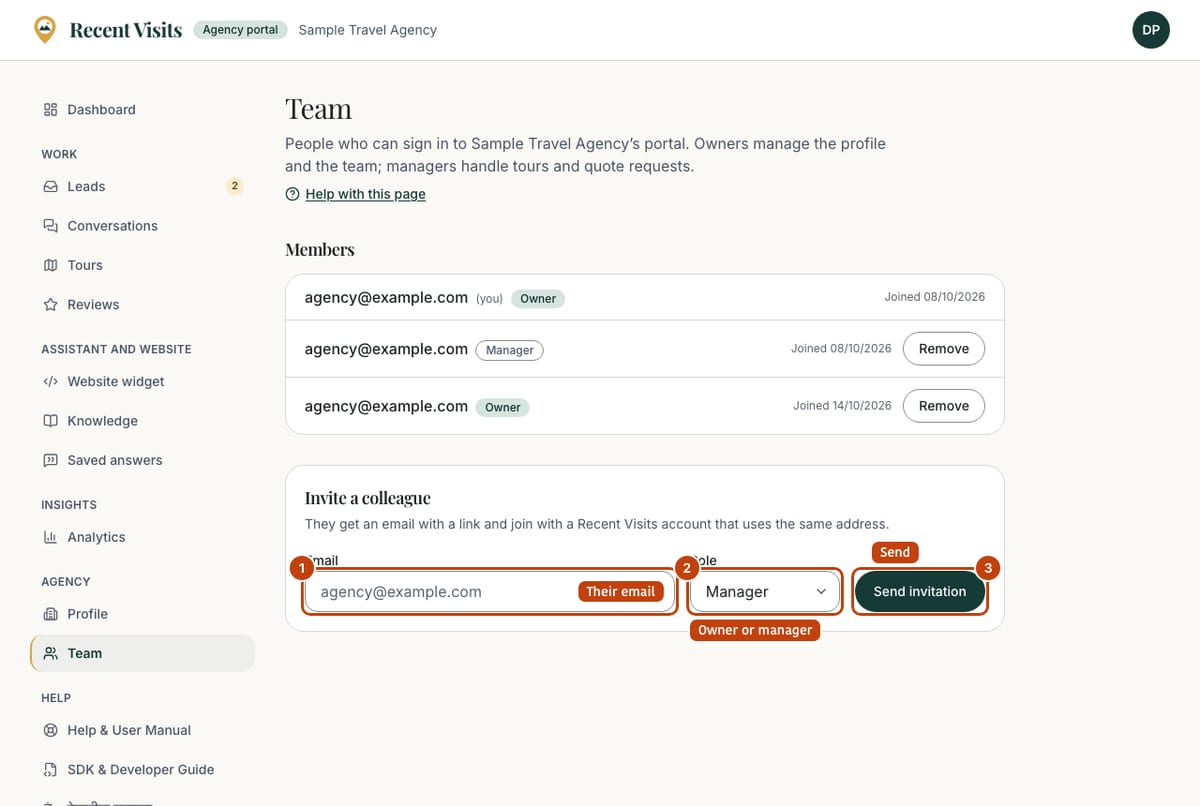
| Members | Always | One row per person: their email (or "Member"), "(you)" next to your own row, a role badge (Owner or Manager), "Joined <date>", and Remove for owners (not on your own row). |
| Pending invitations | At least one invitation is waiting | One row per invitation: the email, role badge, a delivery badge, "Expires <date>", and the owner tools. |
| Invite a colleague | You are an owner | The invitation form. |
Invite someone#
As an owner, use the Invite a colleague form. Text above it: "They get an email with a link and join with a Recent Visits account that uses the same address."
| Field or item | Type | Required? | Explanation | How to use it |
|---|---|---|---|---|
| Yes | The invitee's address (placeholder name@agency.com). A badly formed address shows an error under the box. | Use the address they will sign in with. | ||
| Role | Drop-down | No (default Manager) | Manager or Owner. Owners can do everything in the table above. | Choose Manager unless they must manage the profile and team. |
| Send invitation | Button | n/a | Creates the invitation and emails the link. Success: "Invitation sent to <email>." If email is not configured: "Invitation created for <email>. Email delivery is not configured, so share the link from the Recent Visits team." | Press it once. |
- The invitation is valid for 14 days and can be used once.
- You cannot invite an address that is already on the team ("<email> is already on this team."), and each address can have one pending invitation (inviting again replaces the old link).
- Someone who already belongs to another agency cannot join yours: one account can belong to one agency. They need a separate account.
Pending invitations#
Each pending invitation shows a delivery badge read from the email provider:
| Badge | Meaning |
|---|---|
| Sent | The email was handed to the provider. |
| Delivered | It reached the inbox. |
| Delivery delayed | The provider is retrying. |
| Bounced: check the address | The address is wrong or refuses mail. Use Change address. |
| Marked as spam | The recipient's mail provider flagged it. Ask them to check spam. |
| Not sent: try again | Sending failed. Use Send again. |
| Not sent (email not configured) | This environment has no email set up. |
| Control | Who sees it | What it does |
|---|---|---|
| Revoke | Owners | Deletes the invitation at once; its link stops working. No confirmation. |
| Send again | Owners | Creates a new link for the same address and emails it; the old link stops working. Message: "Sent again with a new link." |
| Change address | Owners | Opens a box ("Correct email address", placeholder name@agency.com) and Invite this address, which replaces the invitation with one to the corrected address. Message: "Invitation emailed to <email>." |
| Get a link to share | Owners, only where new accounts must confirm their email | Creates a fresh link to send another way, shown with a Copy button. Message: "New link created; the emailed link no longer works." Send it only to the invited person; it works only for the invited address. |
The person invited#
They open the link, sign in (or create an account) with the invited email, and choose Join. A banner on their account page also reminds them, with Send the link again. See Joining Recent Visits.
Remove a member#
Owners can choose Remove next to a member. It acts at once, with no confirmation, and takes away their portal access immediately. An agency always keeps at least one owner: the last owner cannot be removed ("An agency needs at least one owner."), and there is no Remove button on your own row, so an owner cannot remove themselves from the portal. To close the whole agency use Closing your agency.
Your account#
The account menu (round button with your initials, top right) shows your name or email and your role (Agency team). Its items are Public profile (a link once your agency is active; before that "Public profile after review"), My account (your traveller-side account, trips and sign-in details) and Sign out.
To change your password or sign-in details use the normal account pages. To delete your own account see the privacy policy and the account page: the only owner of an agency is blocked from deleting their account ("Sole owner of … transfer ownership or close the agency first"). Another owner can be added with an invitation, and the original owner can then be removed by Recent Visits staff on request. Staff members who help with an agency show as "Staff (viewing as agency)".
How to add a colleague#
- Open Agency → Team as an owner.
- Enter their Email, keep Manager (or choose Owner), choose Send invitation.
- Check the delivery badge. If it says Bounced, use Change address.
- Ask them to open the email within 14 days and press Join.
Expected result#
The colleague appears under Members with the date they joined, and the invitation disappears from Pending invitations.
Security habits#
- Give each person their own login; never share one.
- Remove people who leave your agency straight away.
- Use an email address you control as the agency's official email.
Troubleshooting#
| Symptom | Fix |
|---|---|
| No Invite a colleague form | You are a manager. Ask an owner. |
| "This account already belongs to another agency." | One account belongs to one agency. The person needs a separate account. |
| "<email> is already on this team." | They are already a member. |
| The invitation says expired | Use Send again. |
More in Troubleshooting.
Last checked against the product:
Related articles
- Joining Recent Visits · How to claim an existing agency listing or apply to list a new one, every field and document on the forms, how approval works, how the invitation page behaves and what each agency and request status means.
- Accounts, sign-in and profile · Create an account, sign in with a password or an email link, reset a password, use your account page, manage your author profile and understand what you can do without an account.
- Troubleshooting for agencies · Fixes for common problems in the agency portal, with the exact messages: joining and documents, publishing, images, leads and quotes, invitations, access, conversations, reviews and closing the agency.
- Closing your agency · How an agency owner closes the agency on Recent Visits: the Close the agency page, the CSV download of quote requests, the 14-day grace period, how to keep the agency, and what is deleted and what is kept.
Still stuck? Contact us and tell us what you tried.